
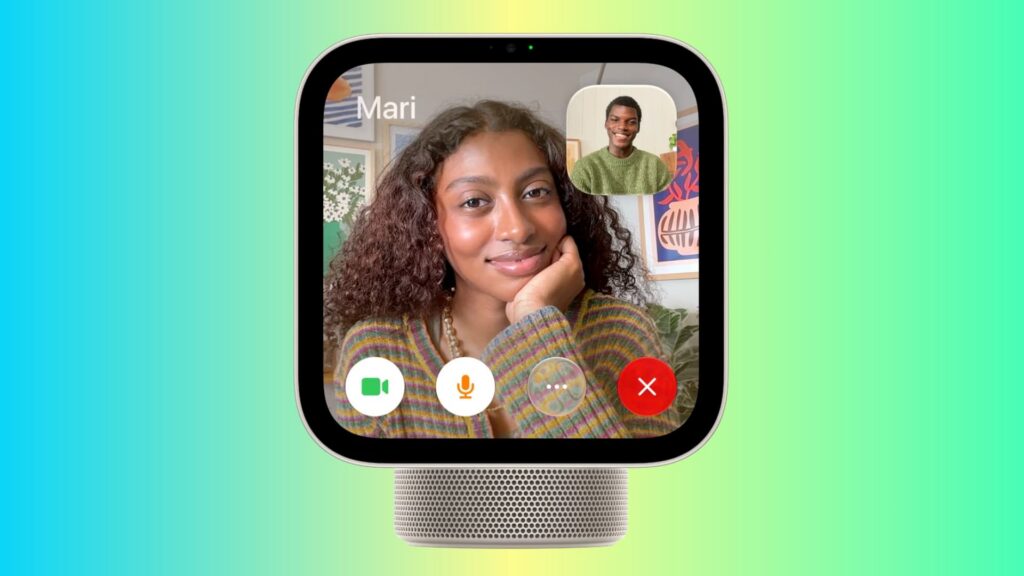
In a November 18, 2026 report, iDownloadBlog described how to place calls from Apple HomeView using its preinstalled FaceTime app. HomeView can make FaceTime video and audio calls, as well as ordinary phone calls that use a paired iPhone’s cellular connection. The latter can reach people who use Android phones. HomeView has no App Store, and the report said third-party calling apps such as WhatsApp and Zoom were not available on it at the time.
Set up calling
- Set up HomeView with your iPhone so both devices use the same Apple Account, then enable Personal Content. According to the report, calls and your FaceTime account are unavailable on HomeView without it.
- Connect the iPhone to the same Wi-Fi network as HomeView and turn on Bluetooth.
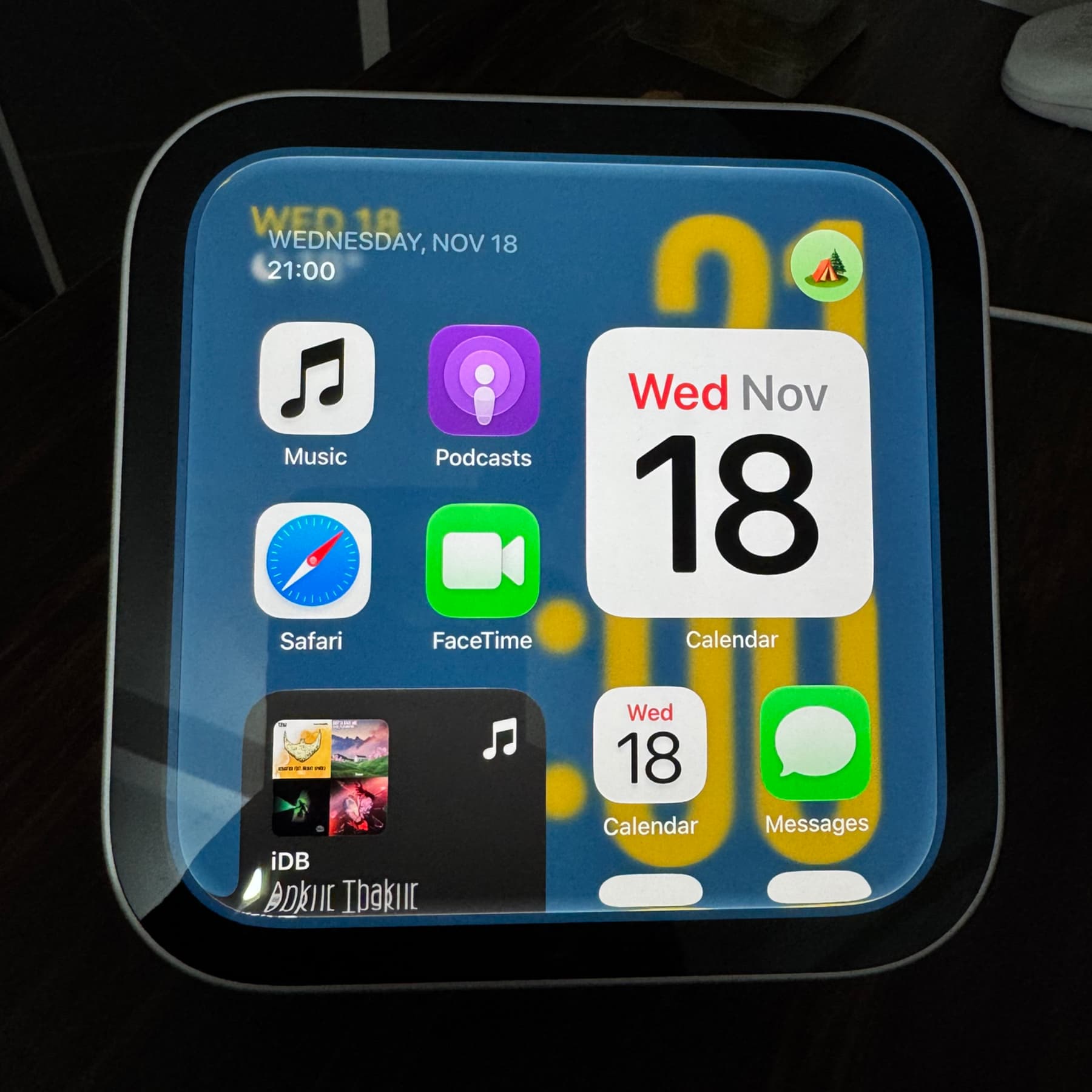
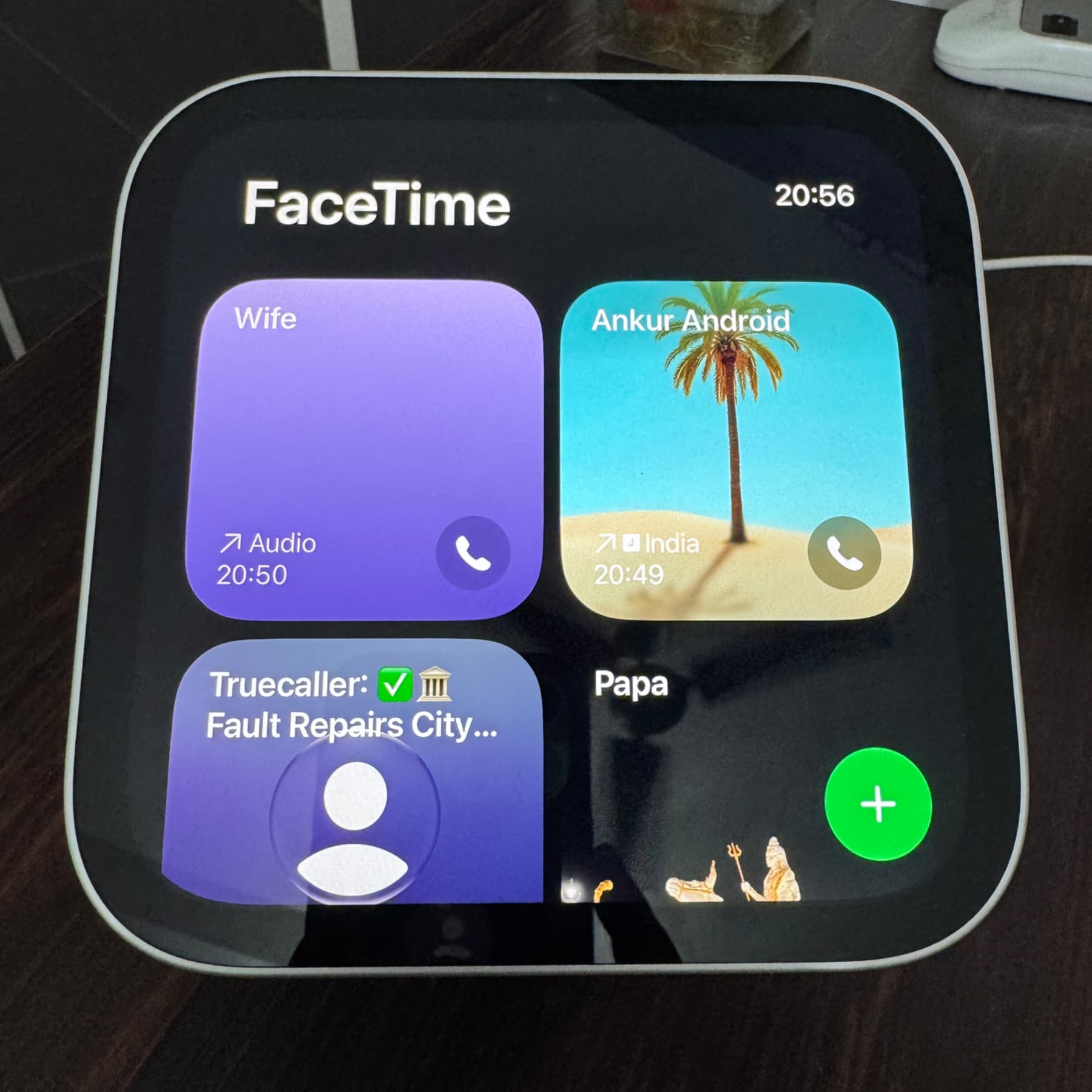
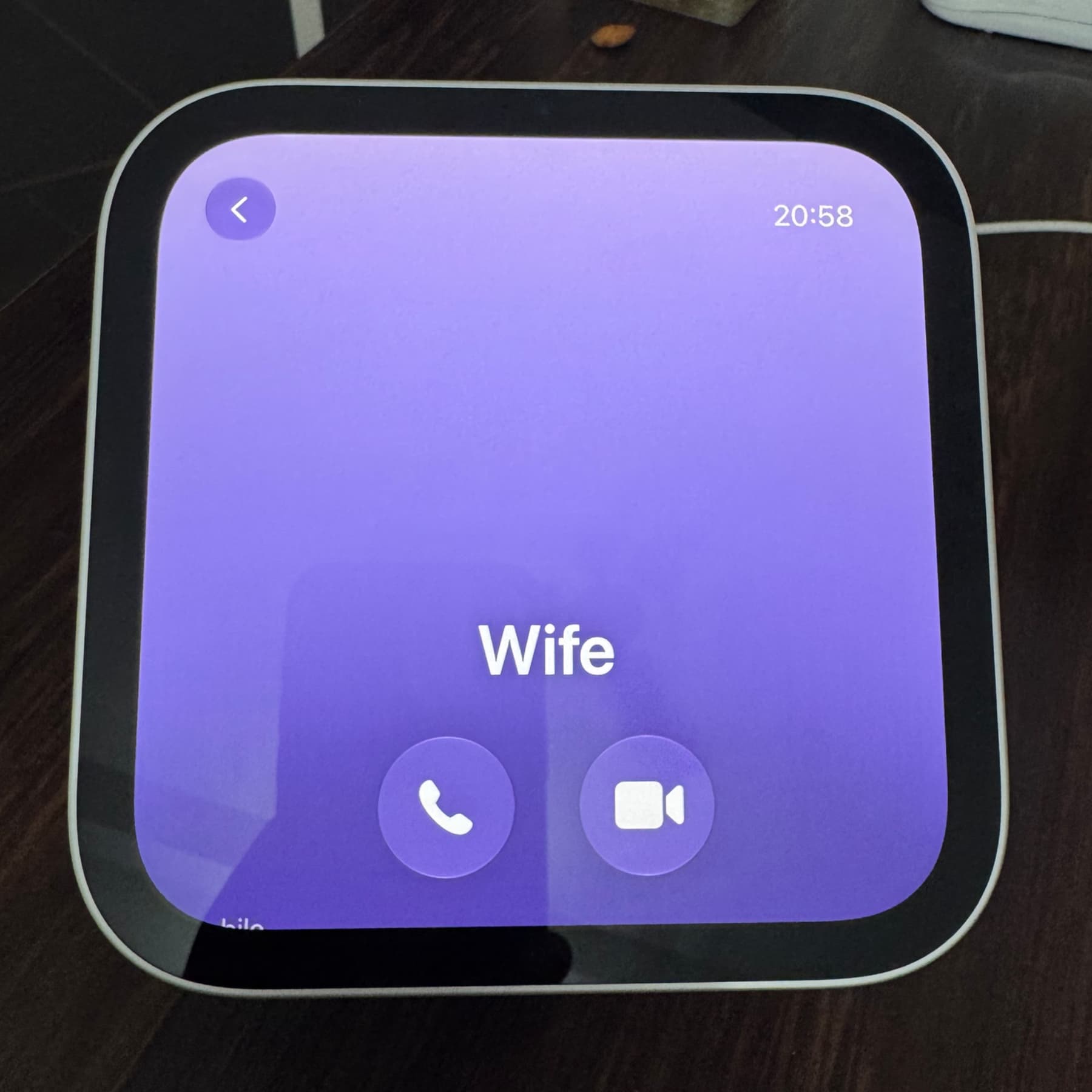
- Open FaceTime on HomeView. Tap the phone icon on a recent-call tile to call that entry.
- For someone outside Recents, tap the green plus button, search for their name and select the contact. Then choose the phone icon, or a FaceTime video or audio option if one appears. To call an unsaved number, enter it in the search bar, tap the curved arrow on the keyboard and then tap the phone icon.
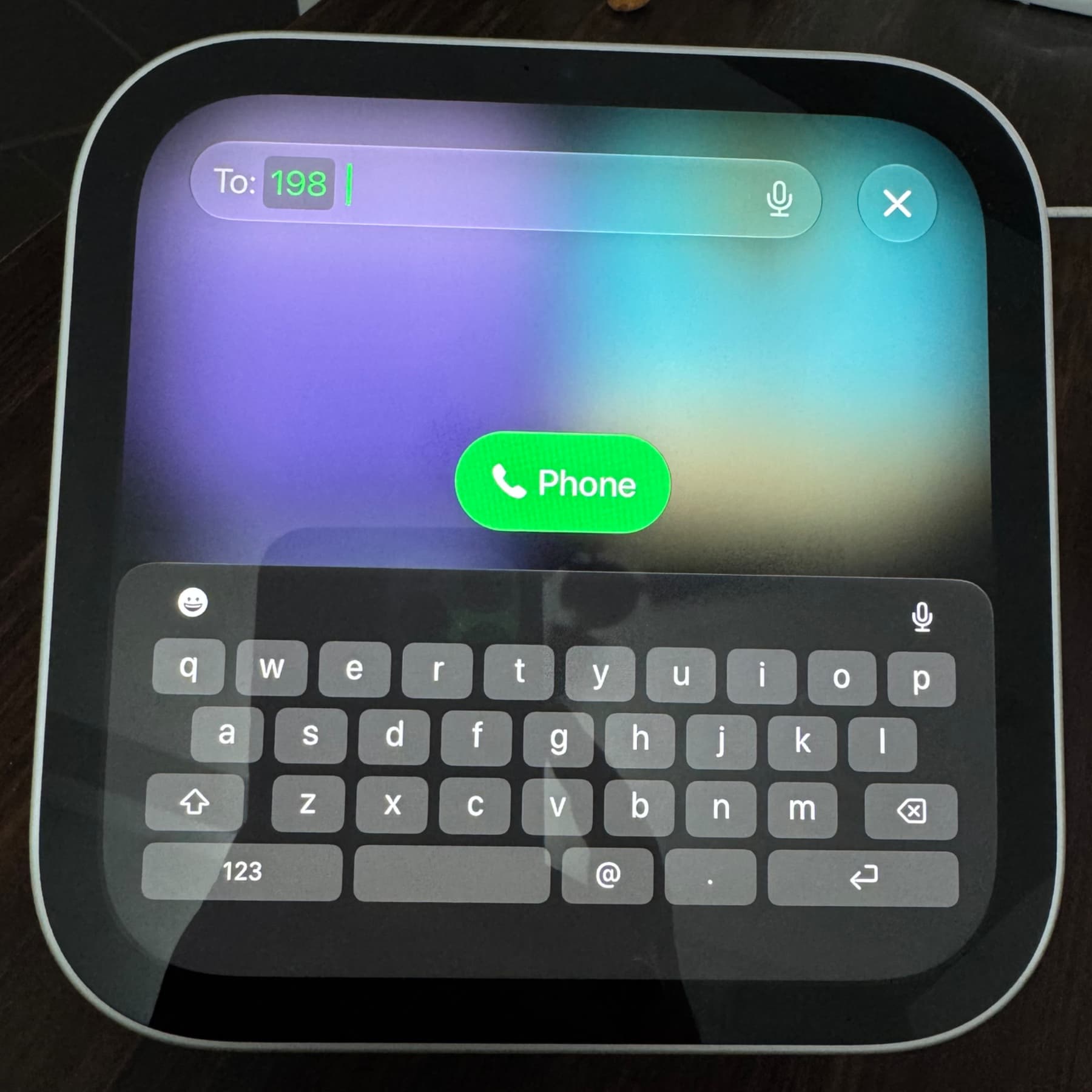
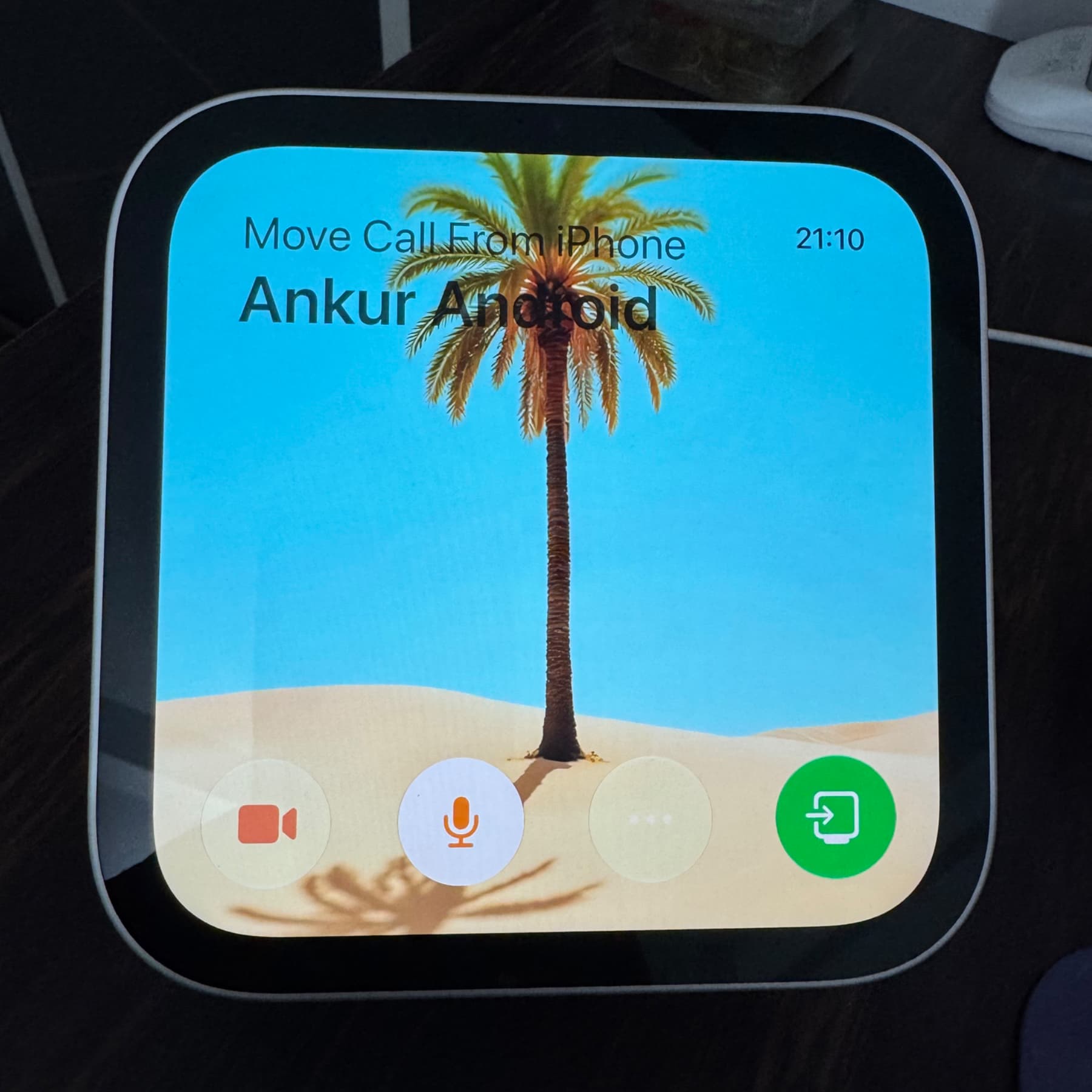
You can also ask Siri to call or FaceTime someone. During an existing iPhone call, the report says you can hold the phone near HomeView and tap the green transfer button to move the call over without disconnecting.
Limitations observed in the report
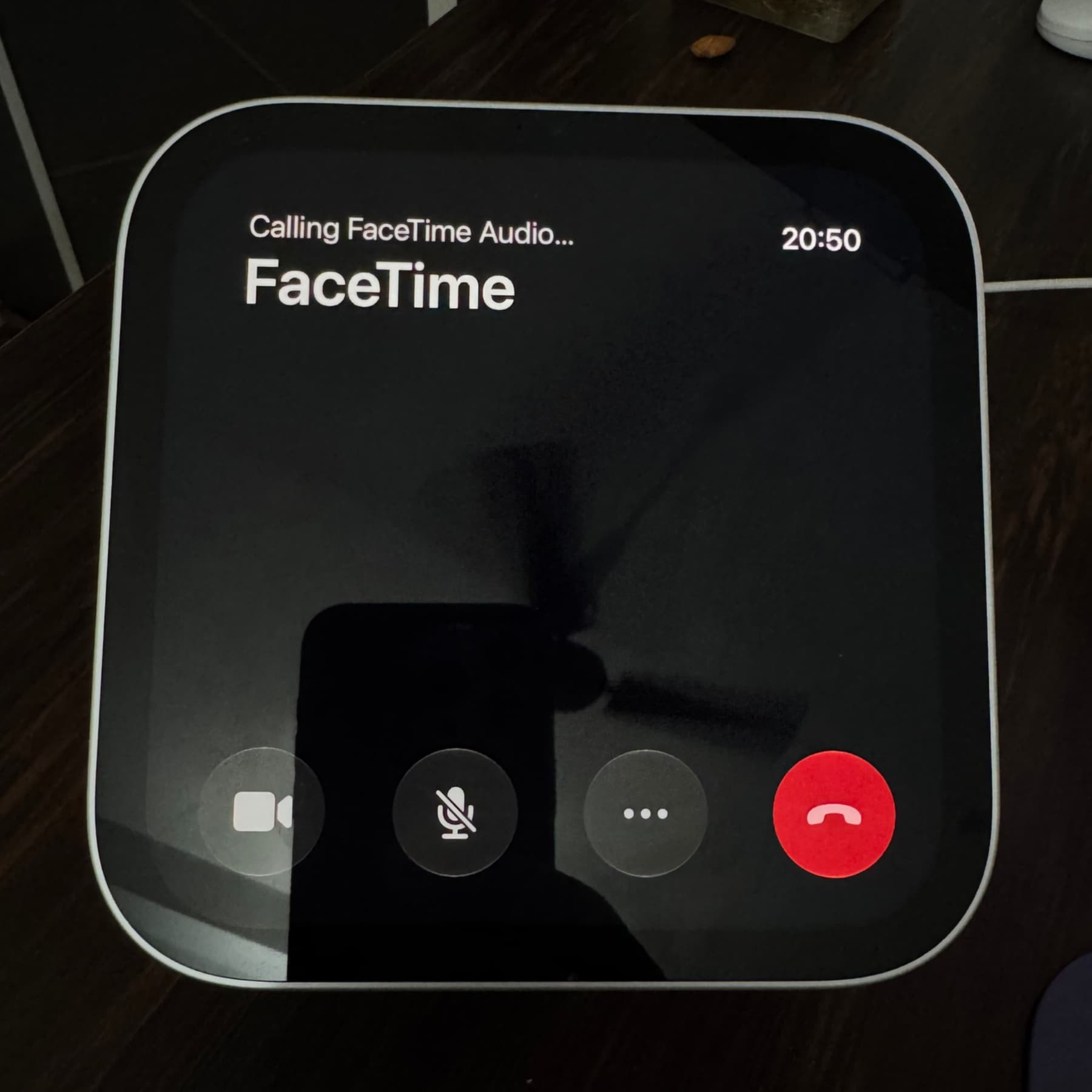
The writer reported that some recent iPhone calls did not appear on HomeView. In their testing, tapping the phone icon for a FaceTime-enabled contact started a FaceTime audio call, with no apparent option on that contact screen to choose an ordinary cellular call instead.
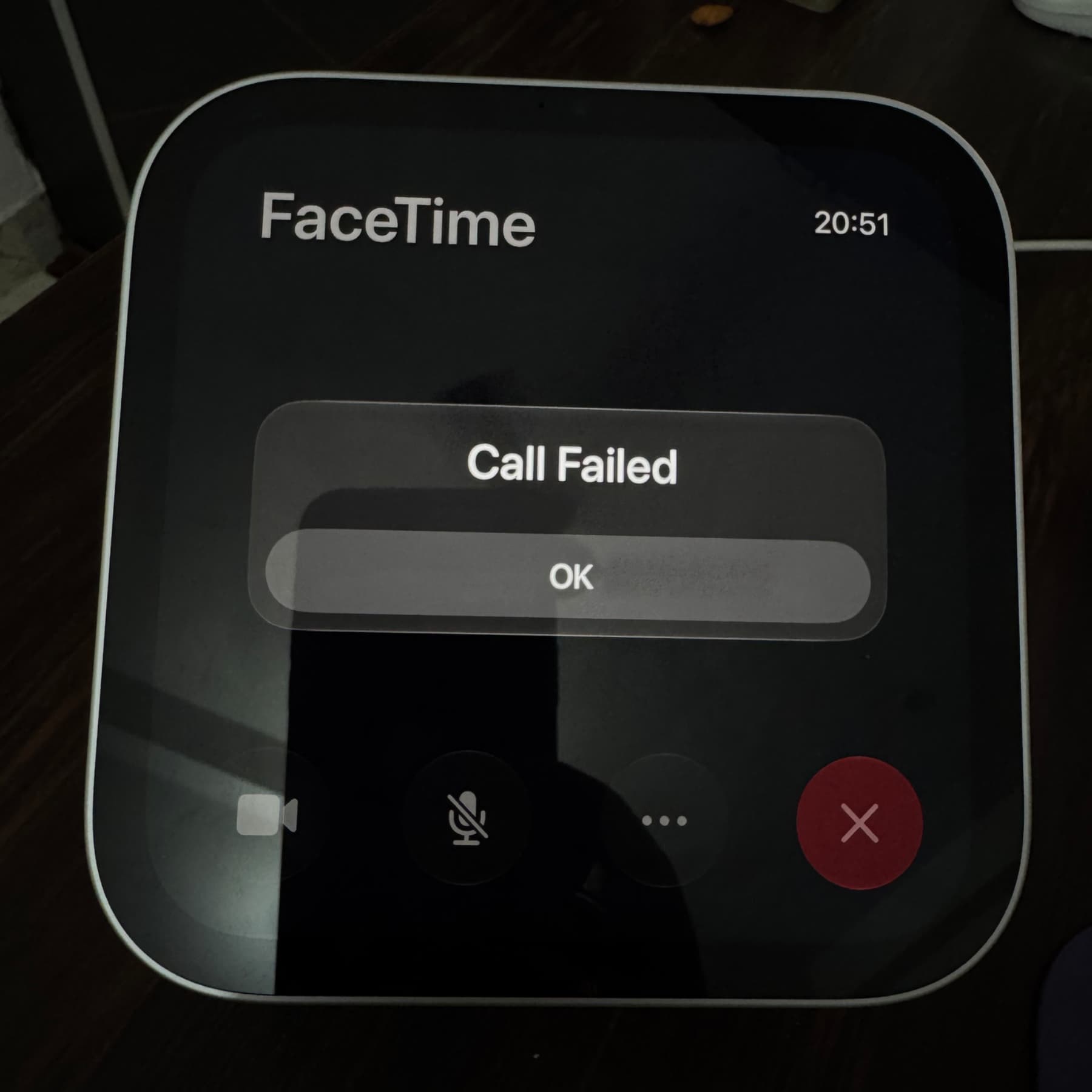
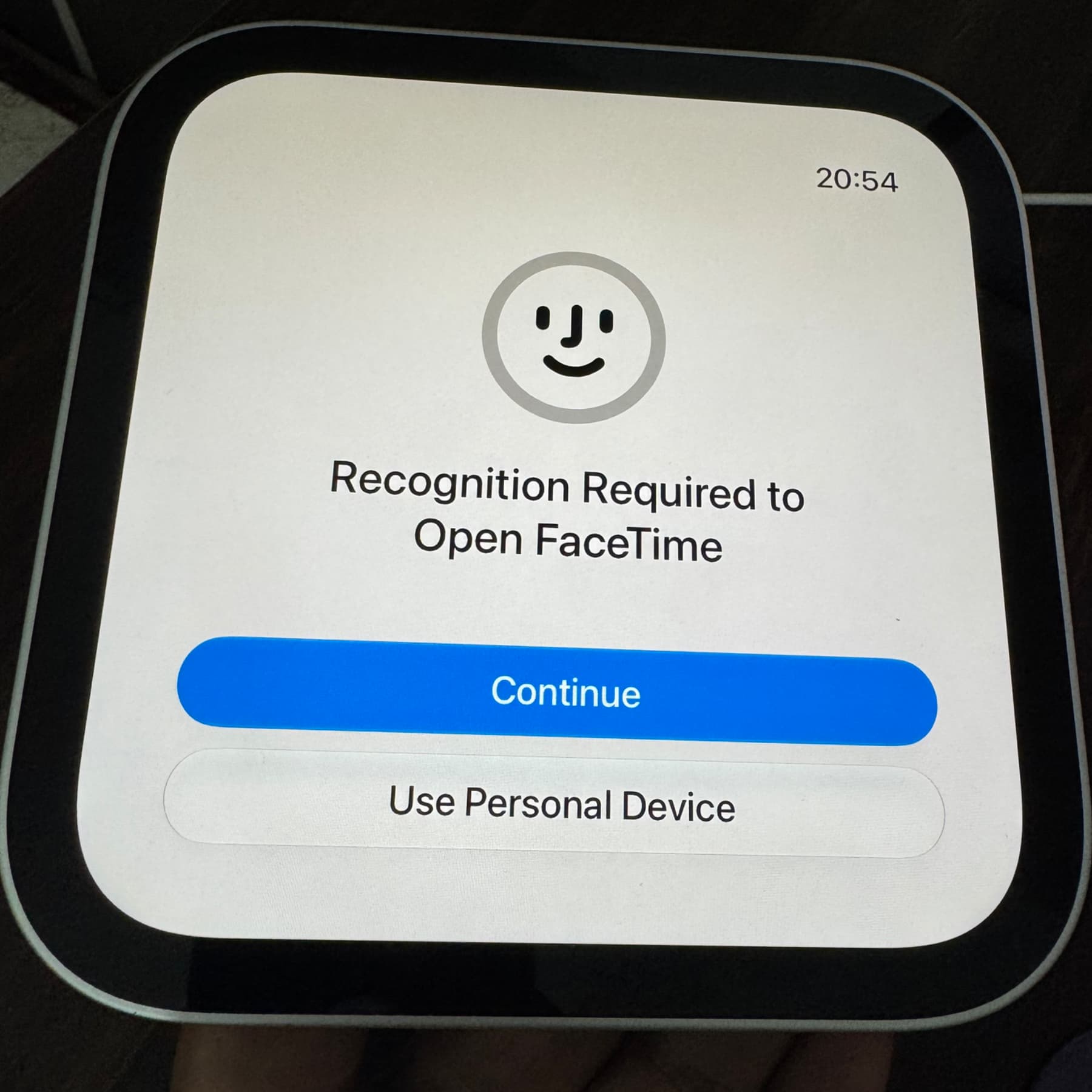
The writer also reported that recent calls could not be deleted or calls recorded on HomeView. Deleting a recent call on the iPhone removed it from HomeView, though the change was not always immediate. Other issues observed during the writer’s five days with the device included a temporarily unresponsive hang-up button on FaceTime audio calls, failed or dropped calls, and calls that could end when the user left the HomeView frame and had to be recognized again. These are the writer’s observations, not established behavior for every HomeView.