

As reported on November 3, 2026, iOS 27.2, iPadOS 27.2 and macOS 27.2 Golden Gate let you edit captions and photo comments in upgraded iCloud Shared Albums. Previously, changing a comment meant deleting it and posting a new one.
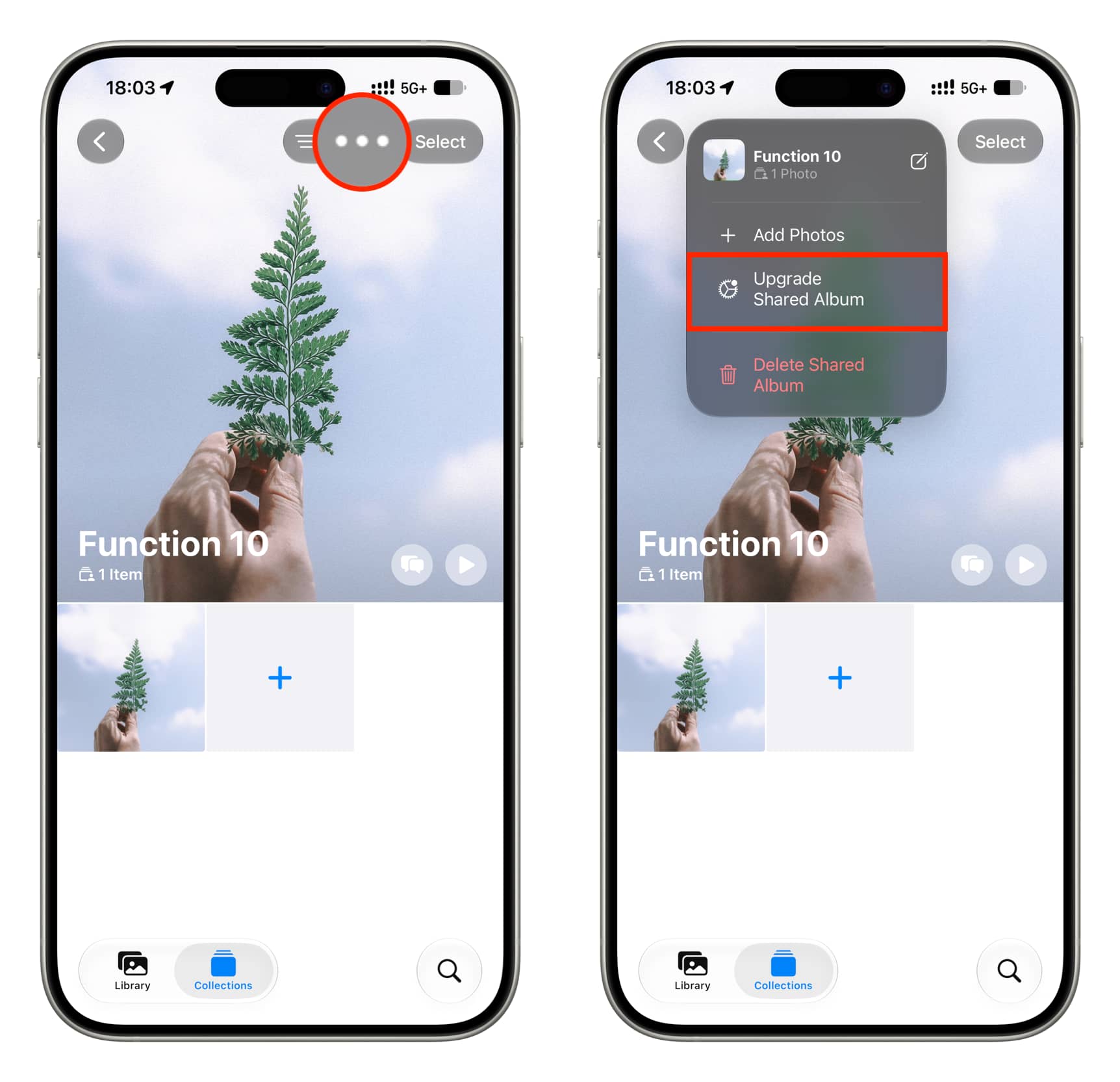
These controls apply only to upgraded Shared Albums. Upgraded albums count against your iCloud storage, support emoji reactions and require iCloud Photos to be set up on the device used to create the album. To upgrade an older album, open its three-dot menu and choose Upgrade Shared Album.
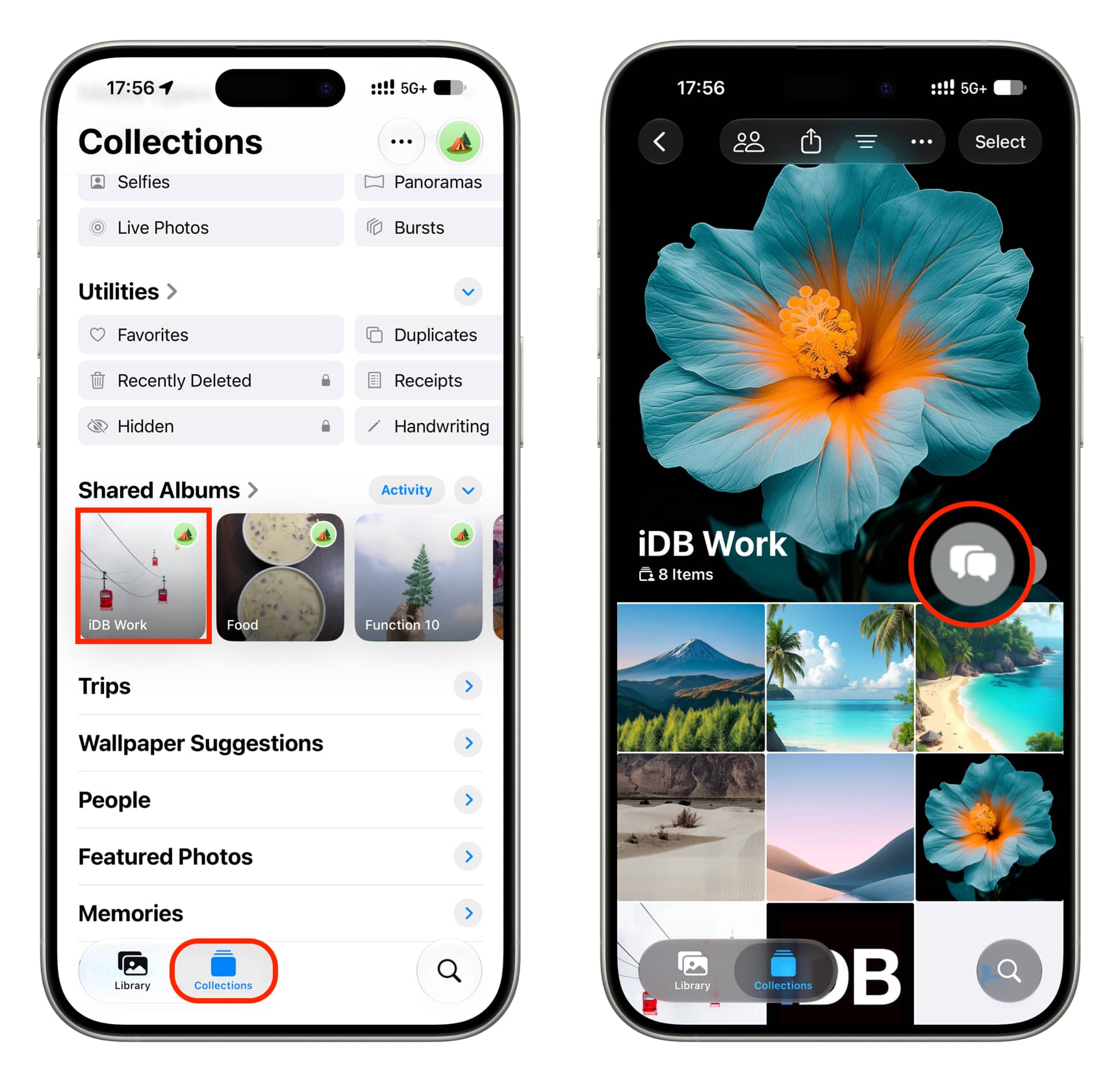
Edit a caption
The caption here belongs to an activity entry for a batch of photos you shared. If you added photos in separate batches, look for the corresponding “You shared N photos” entry.
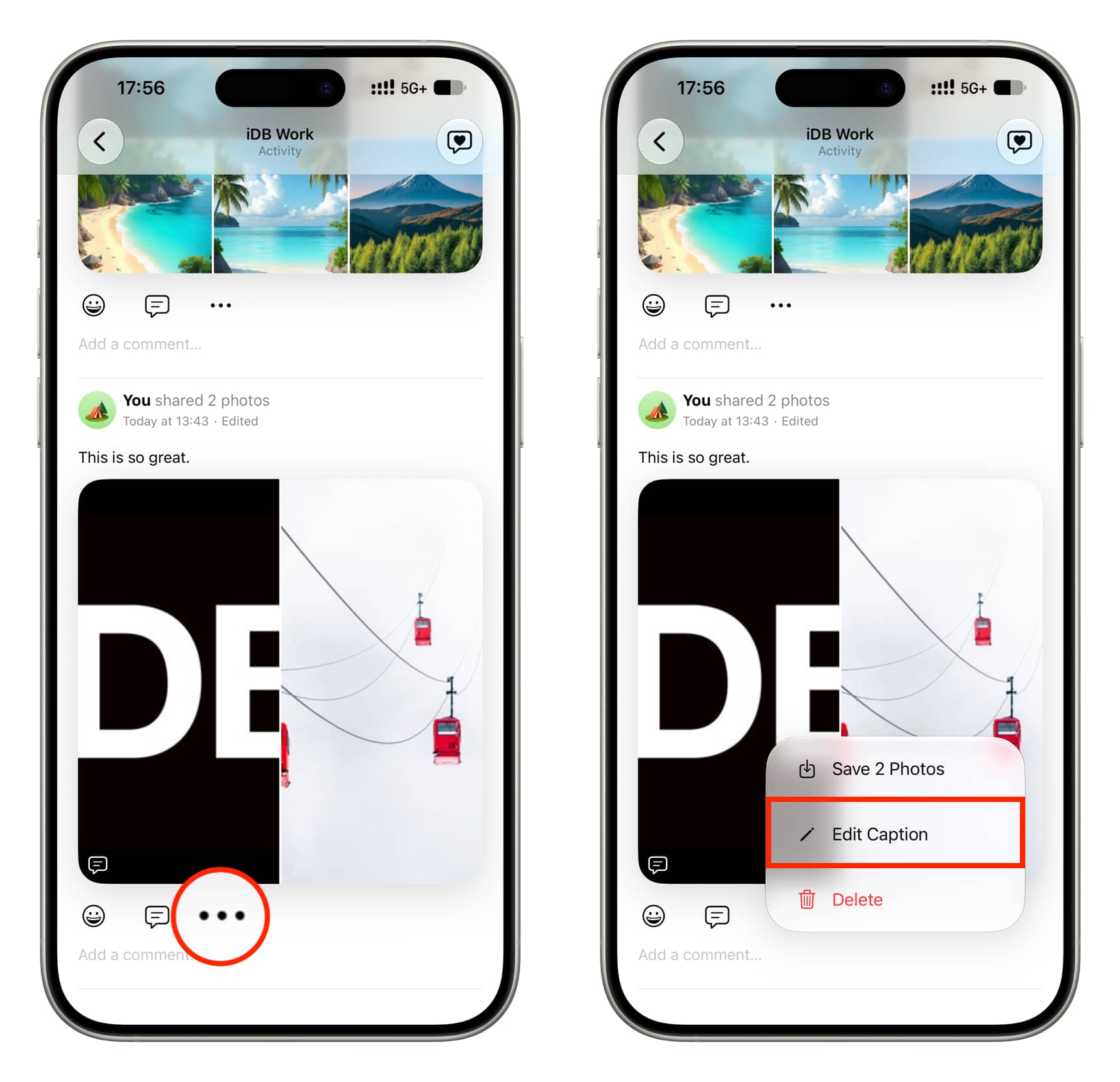
- iPhone or iPad: On iOS or iPadOS 27.2 or later, open Photos → Collections → Shared Album, then tap the activity icon. Find the entry, tap its three-dot menu, choose Edit Caption, and save with the checkmark.
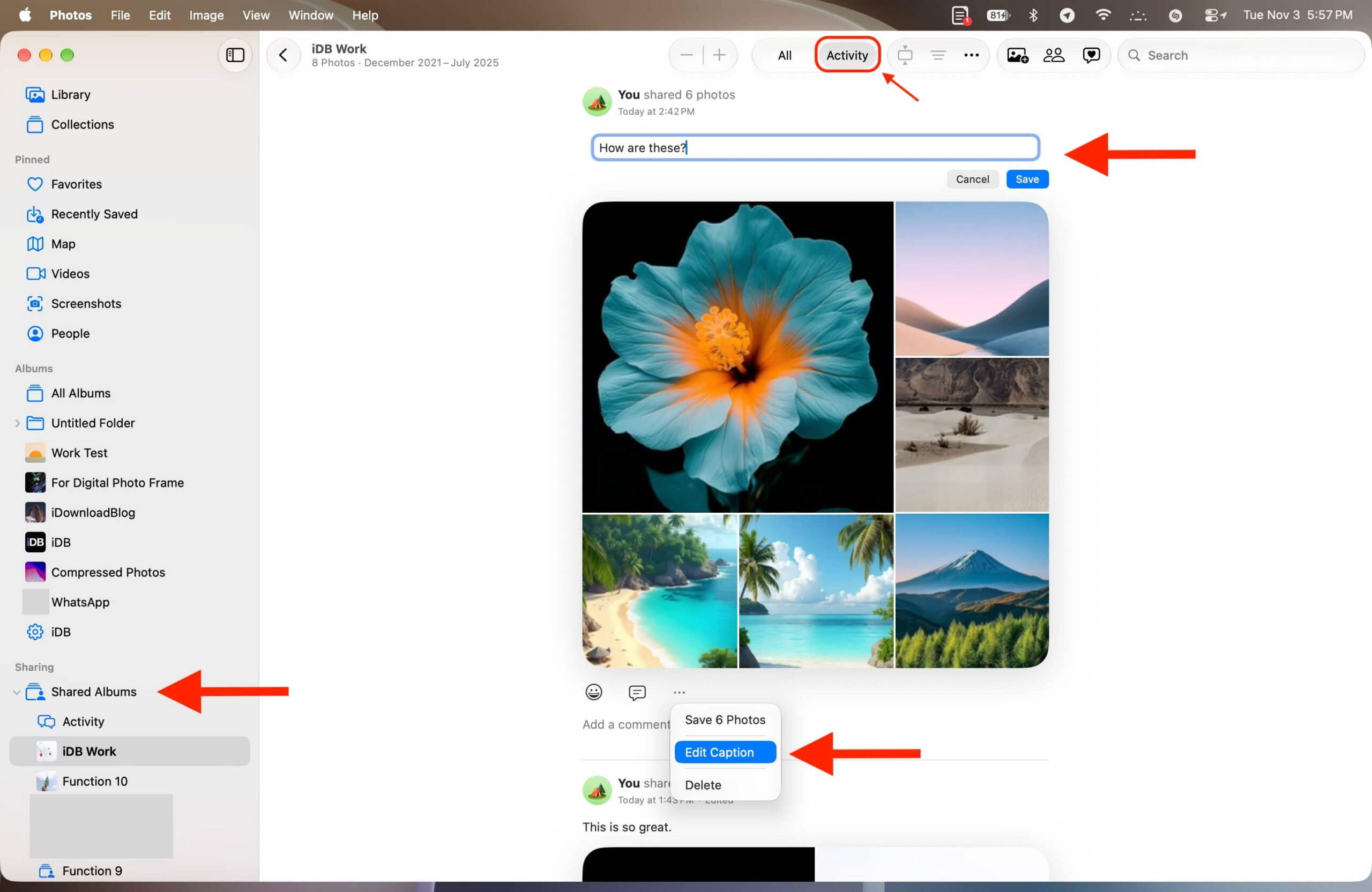
- Mac: On macOS 27.2 Golden Gate or later, open Photos → Shared Albums, select the album and click Activity. Use the entry’s three-dot menu to choose Edit Caption, then click Save.
- Web: Sign in at iCloud.com/photos, open Shared Albums, select the album and switch to Activity. Choose Edit Caption from the entry’s three-dot menu, then click Save.
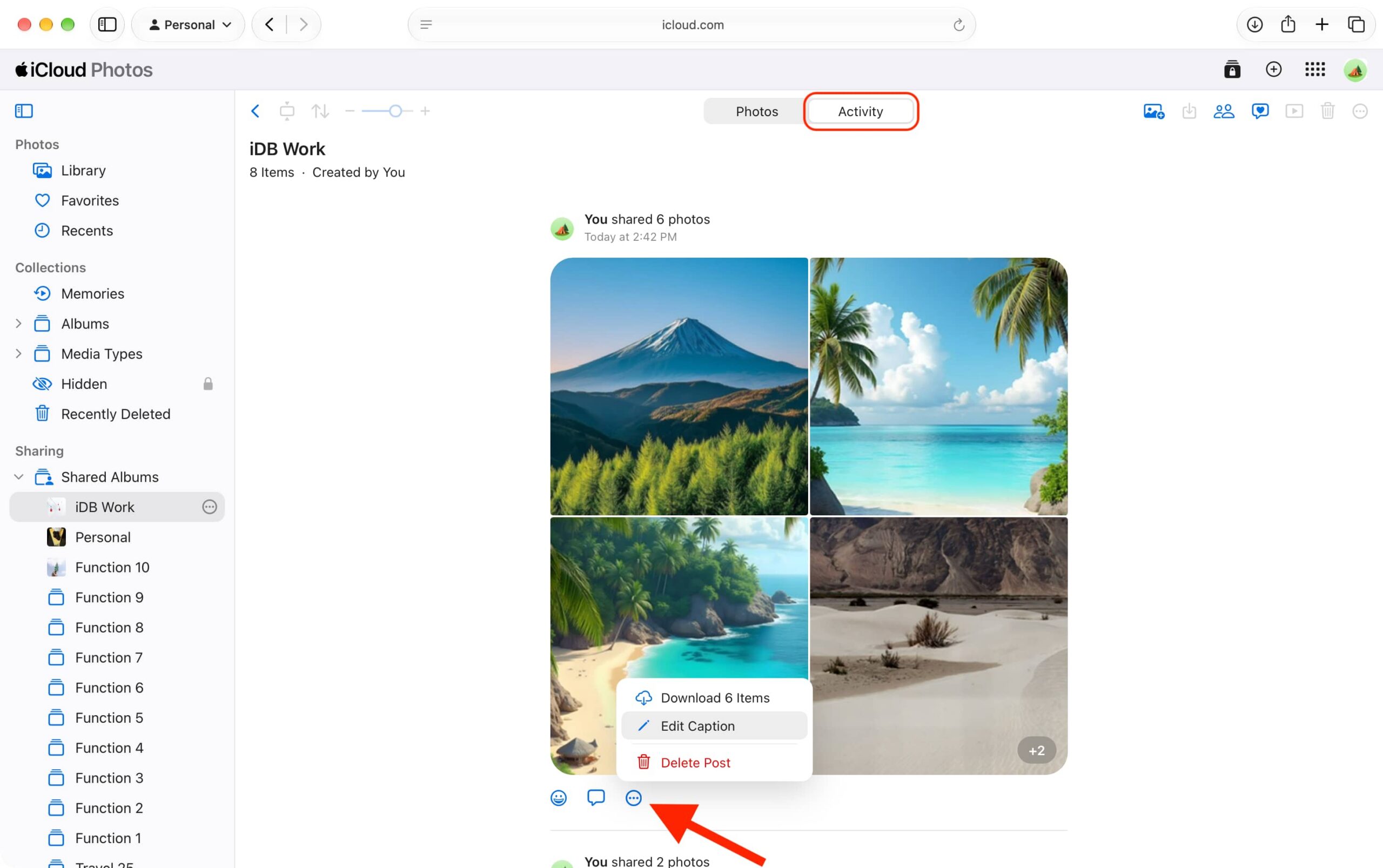
An edited activity entry displays an “Edited” label, but tapping it does not reveal the previous caption.
Edit a photo comment
Open the photo in its Shared Album, then use its comment control:
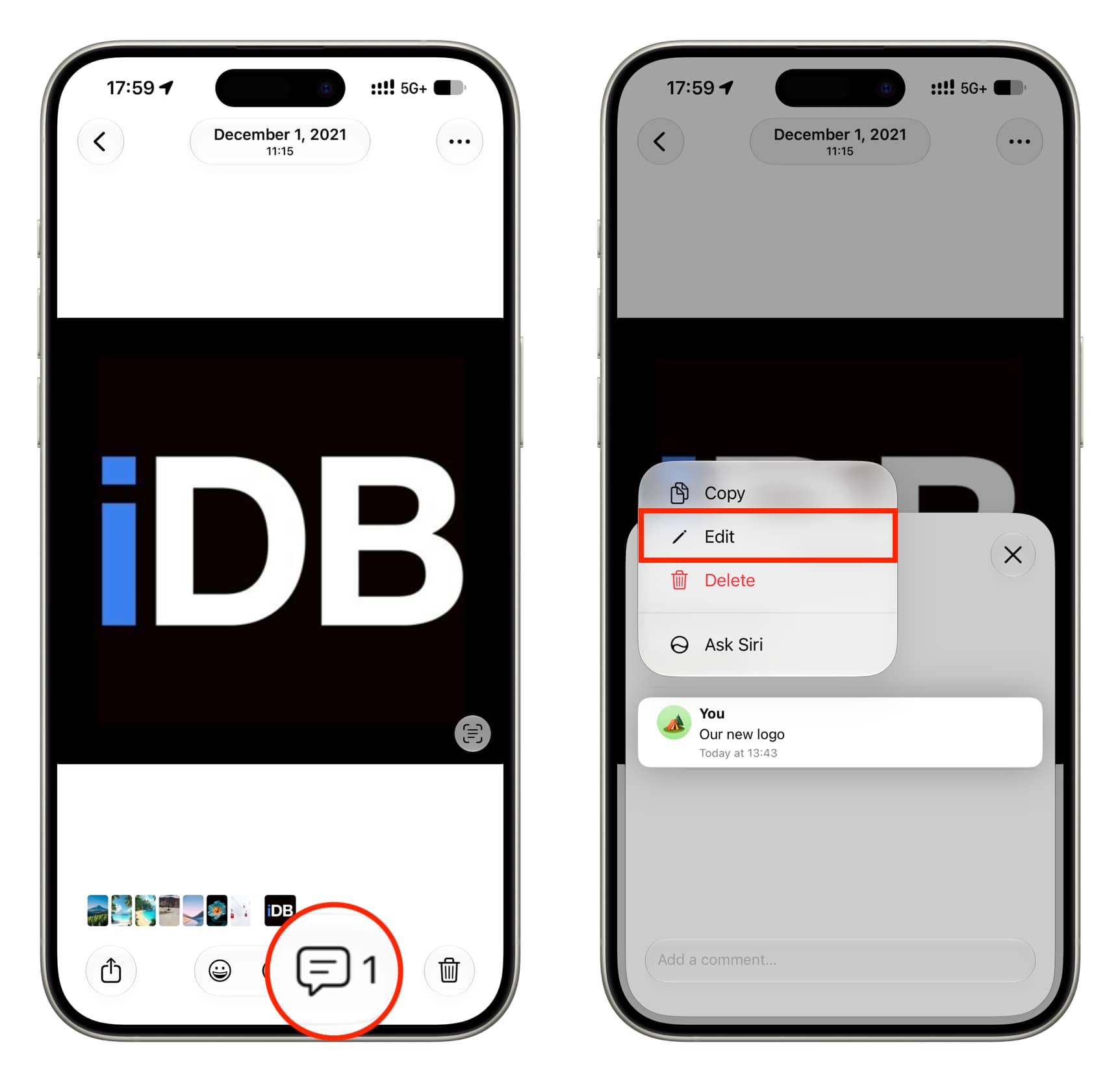
- iPhone or iPad: Touch and hold your comment, select Edit, make the change and tap the checkmark. To remove the comment instead, swipe left on it and tap the red trash icon; clearing all its text will not delete it.
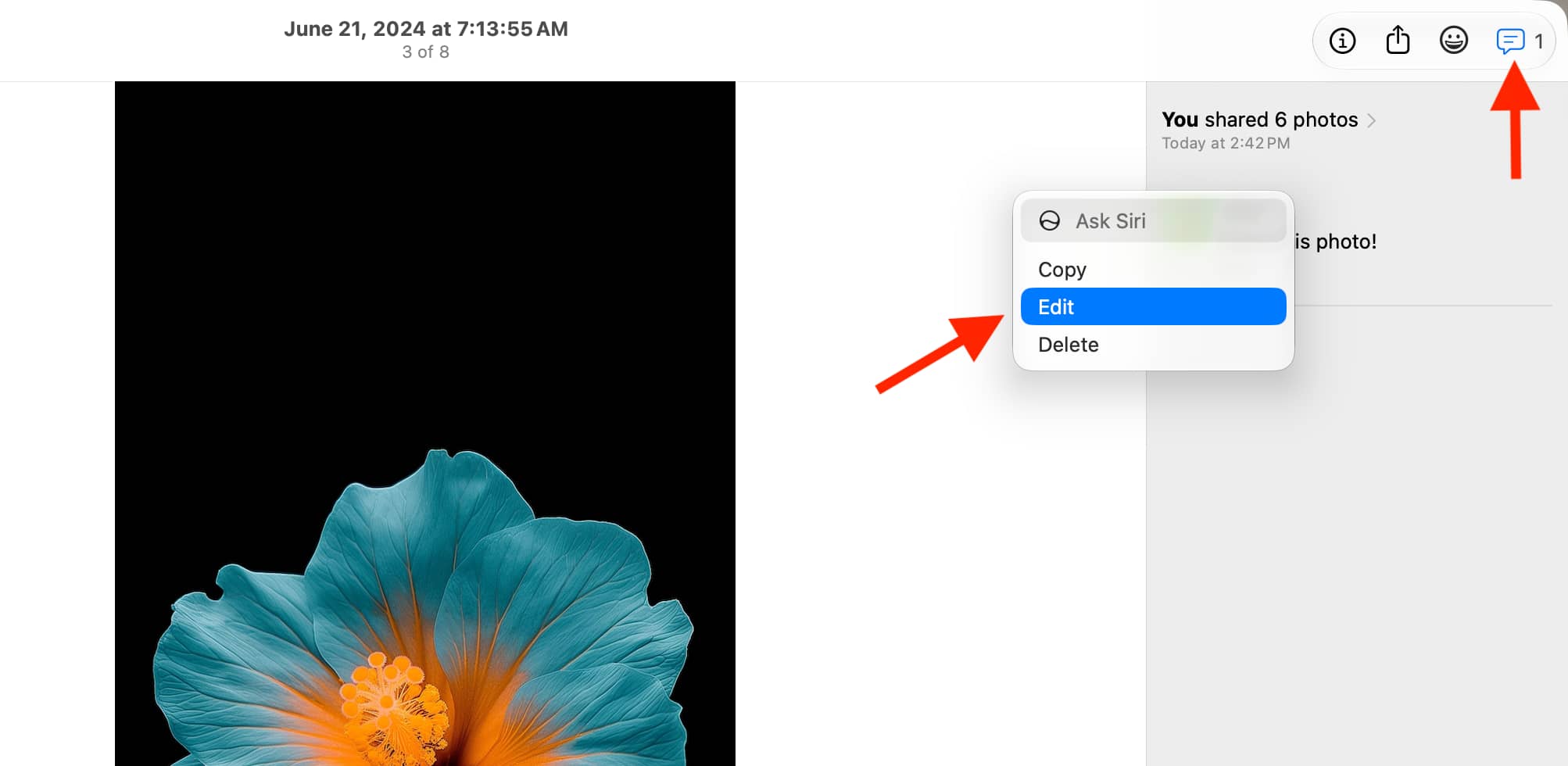
- Mac: Double-click the photo, click the comment icon, Control-click your comment and select Edit. Change the text and click Save.
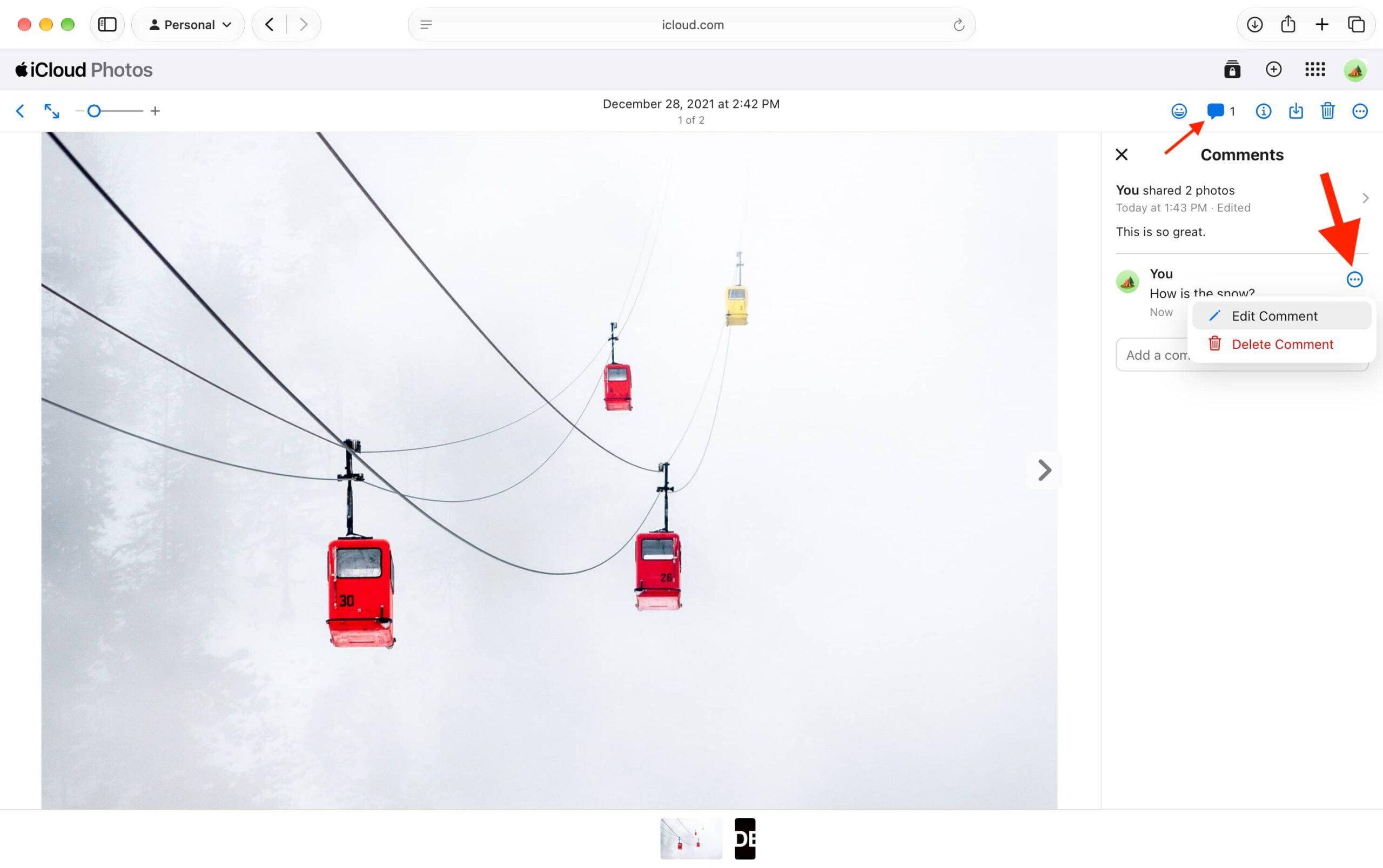
- Web: Open the photo at iCloud.com/photos and click the comment icon. Hover over your comment, open its three-dot menu, select Edit Comment and click Save.
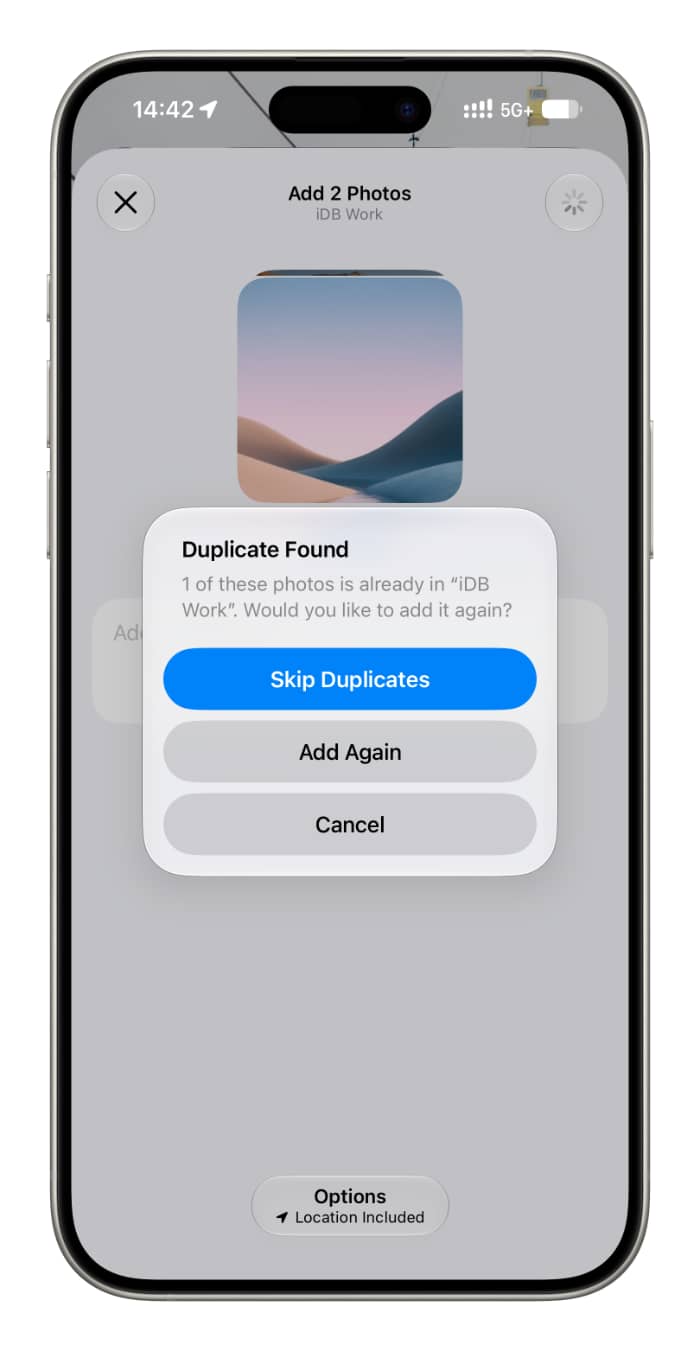
The report also notes that Apple’s 27.2 updates show a pop-up intended to prevent duplicate photos from being added to a Shared Album.