
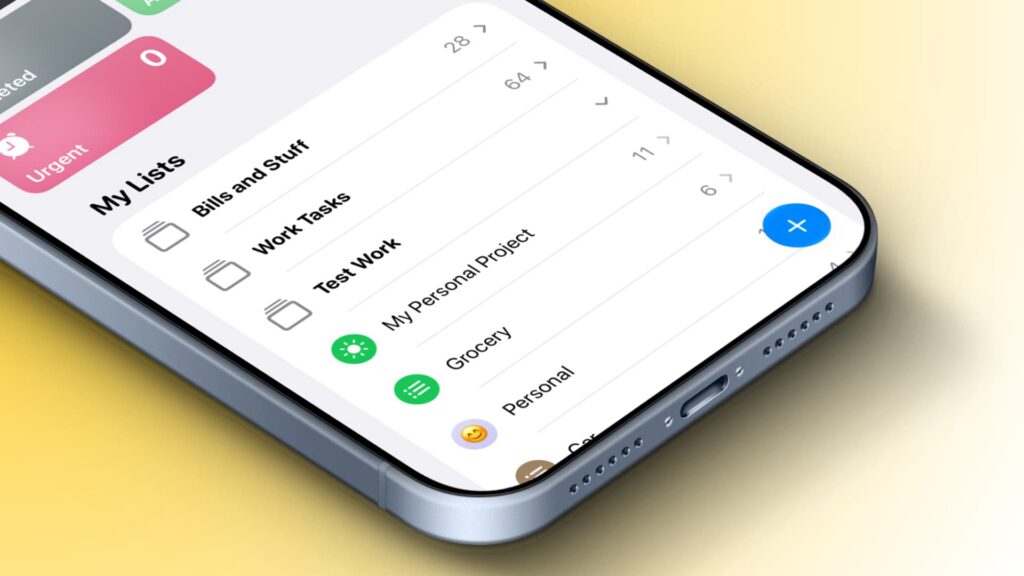
As described in a guide published November 12, 2026, Apple Reminders lets you group related lists. Opening a group shows tasks from all its lists on one scrollable screen, while each list remains available separately. Groups sync through iCloud to devices using the same Apple Account.
Create a group by dragging a list
On iPhone, iPad, or Mac, drag one reminder list onto another, then name the new group. This method moves one list at a time. To add several lists while creating a group on iPhone or iPad, use the steps below.
Create a group on iPhone or iPad
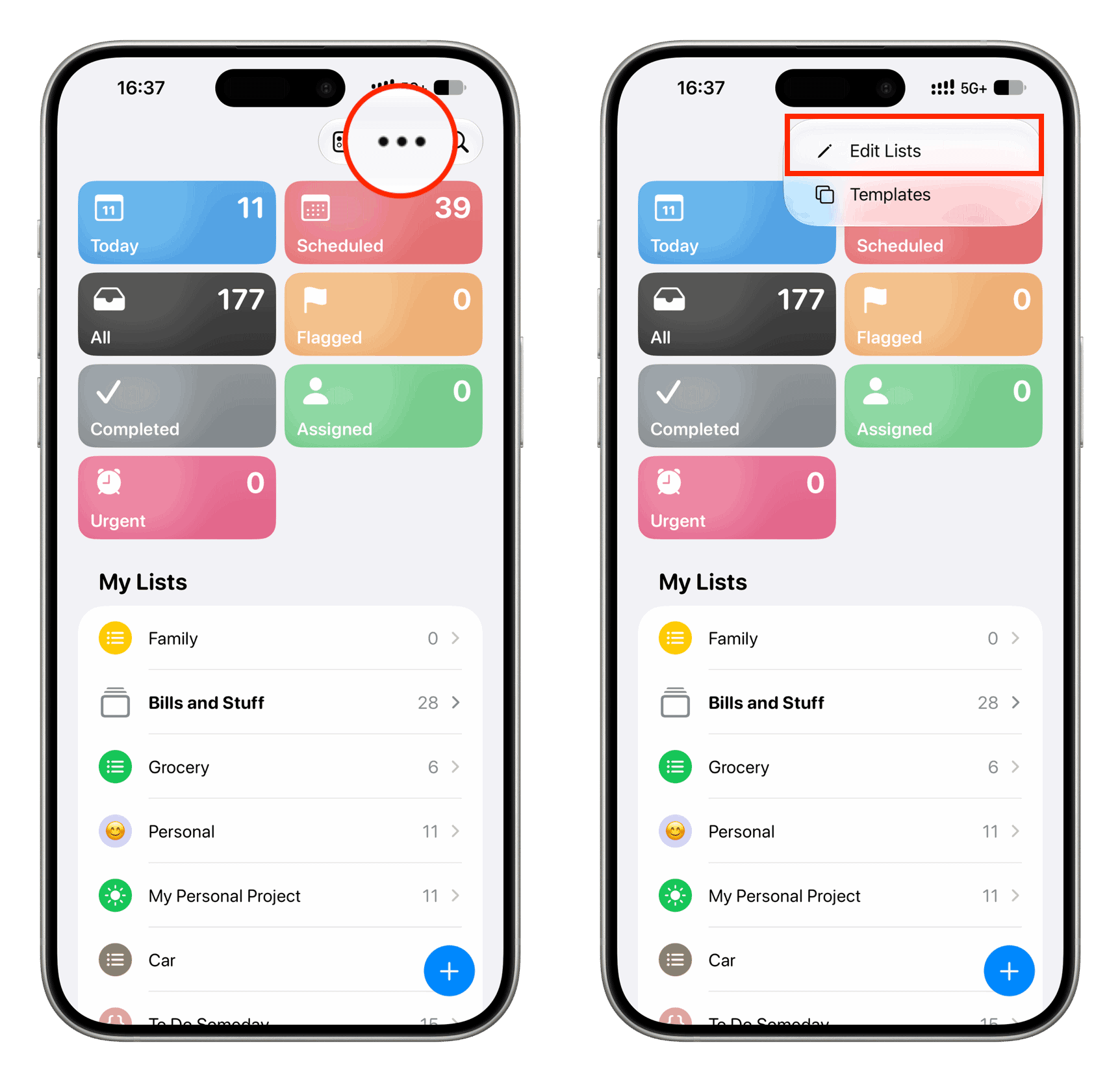
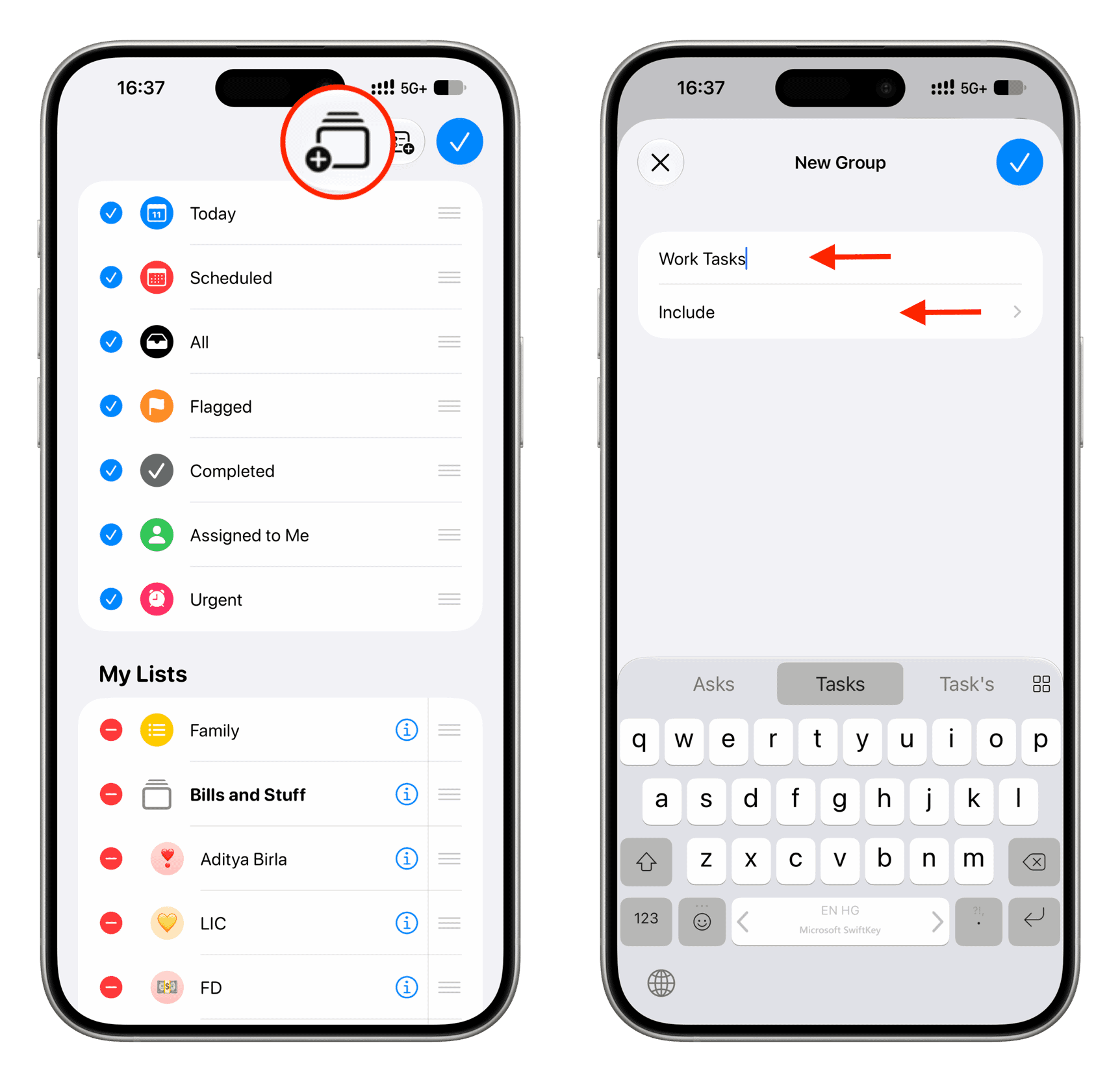
- Open Reminders, tap the three dots at the top, and select Edit Lists.
- Tap the new folder icon and name the group.
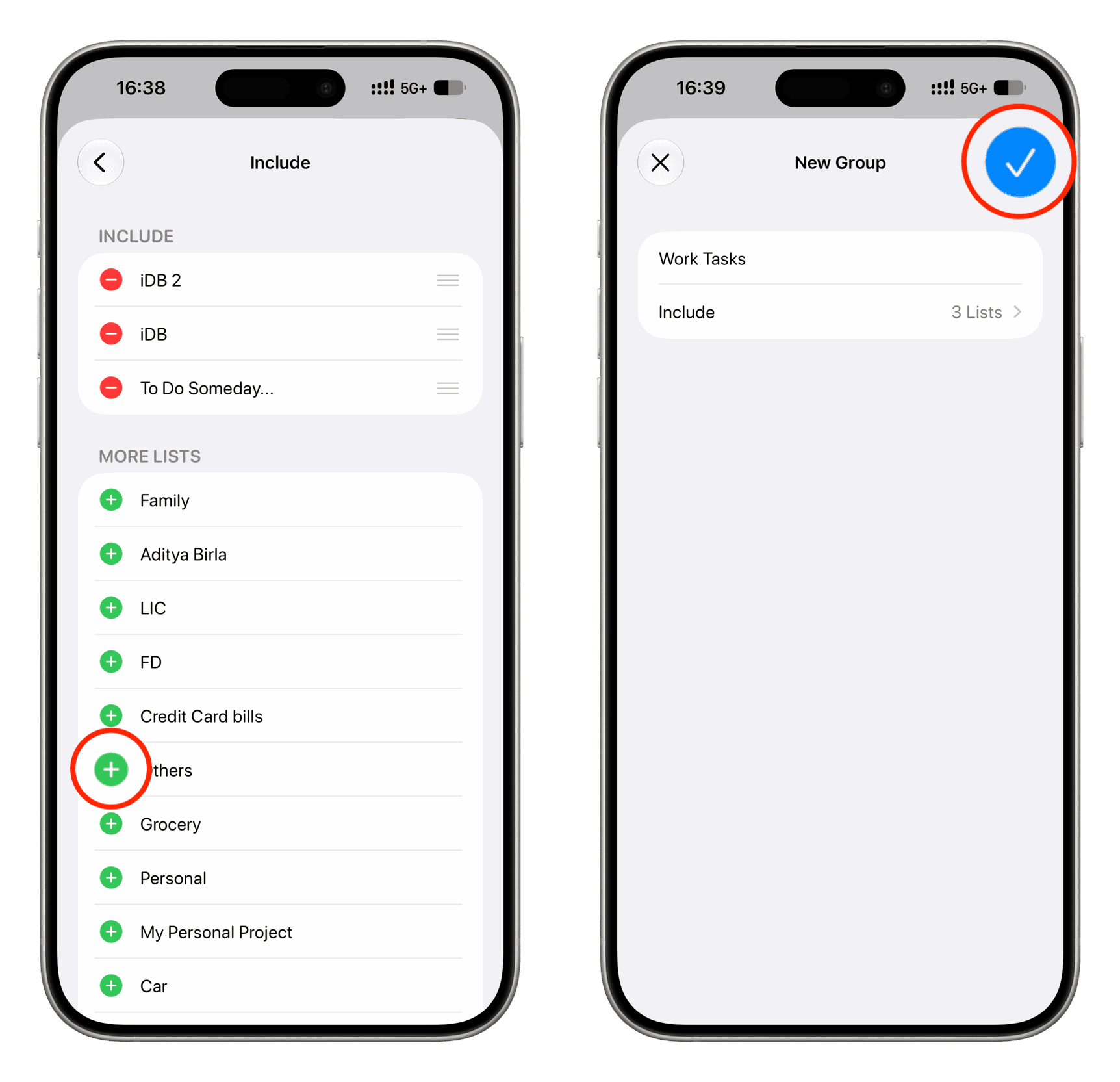
- Tap Include, then tap the green plus button beside each list you want to add.
- Tap Back, then tap the checkmark on this screen and again on the next screen to finish.
Create a group on Mac
- Open Reminders and select a list.
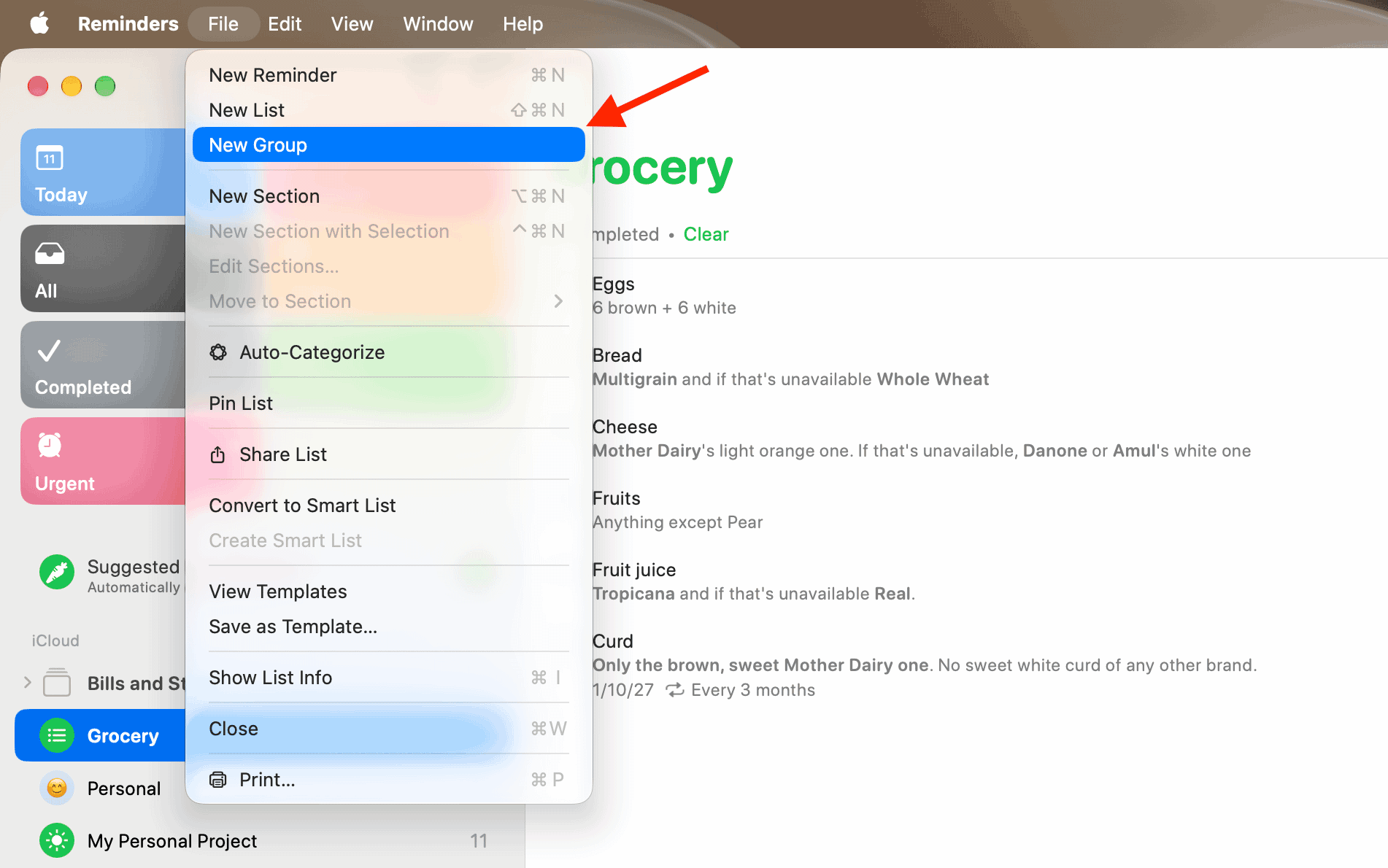
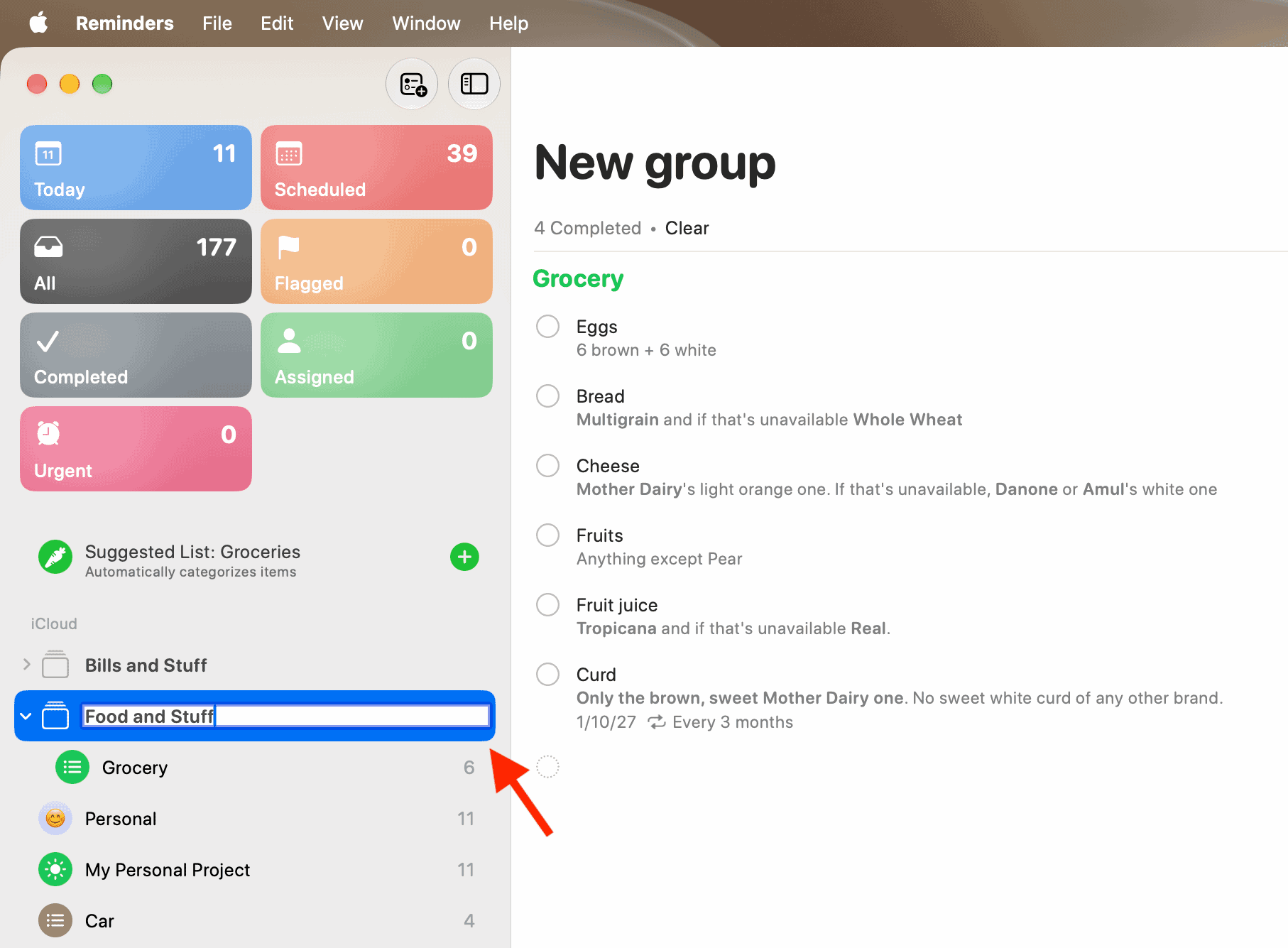
- Choose File → New Group, name the group, and press Return.
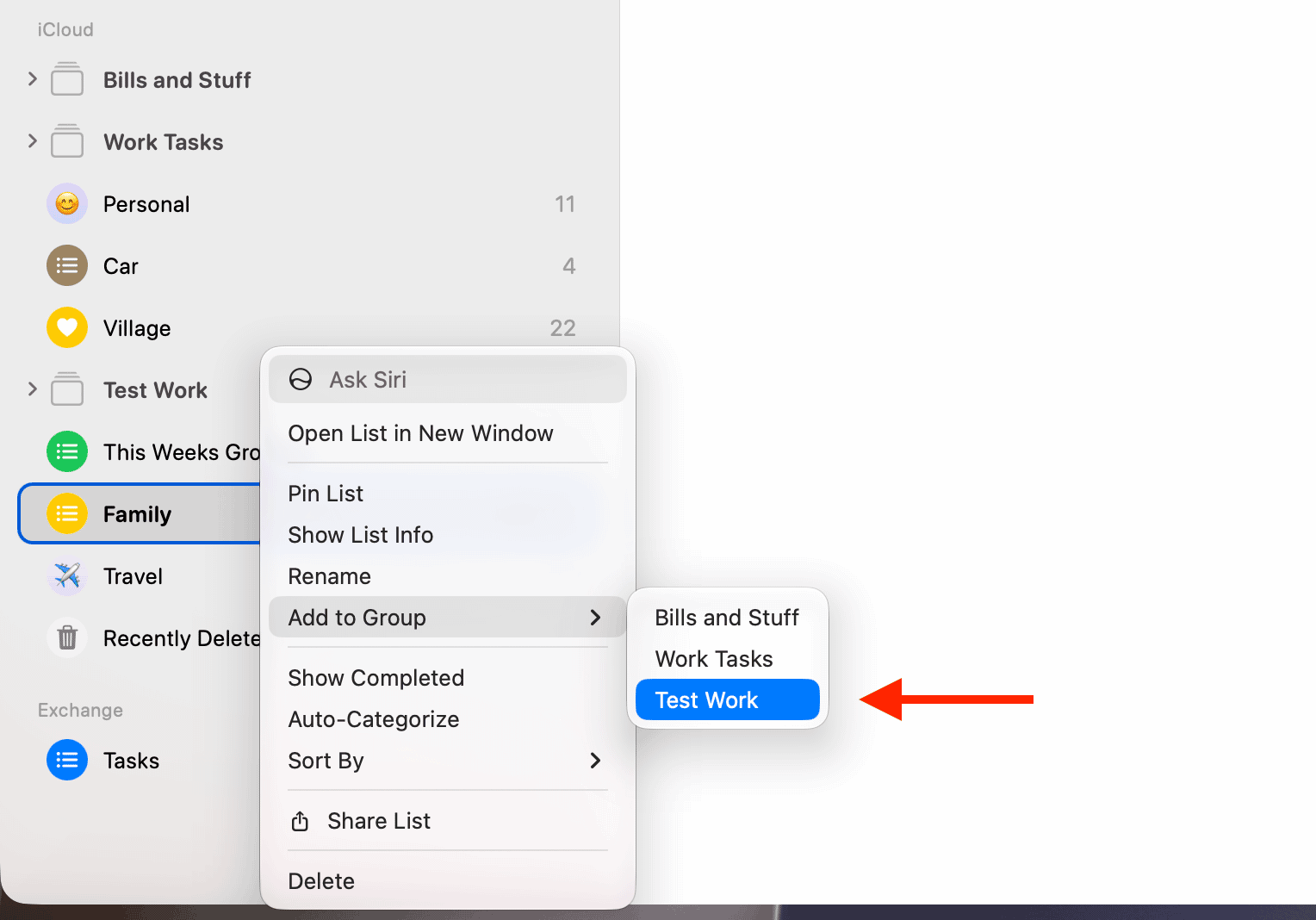
- Control-click or right-click other lists to add them to the group. You can also drag lists into it.
The guide notes that the Mac app does not offer the same way to add several lists to a group at once as the iPhone and iPad app.
Manage a group
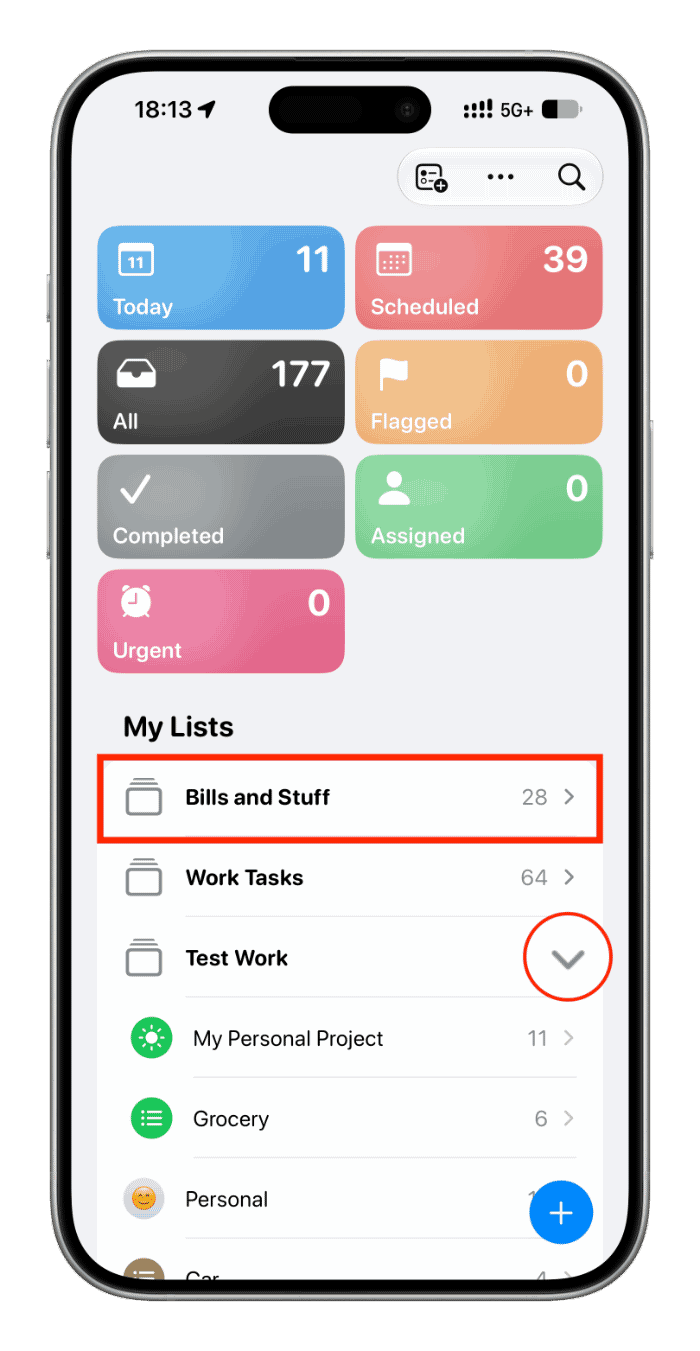
Tap or click a group to see tasks from all its lists. Use the arrow beside the group to expand its lists, then open an individual list to see only its tasks.
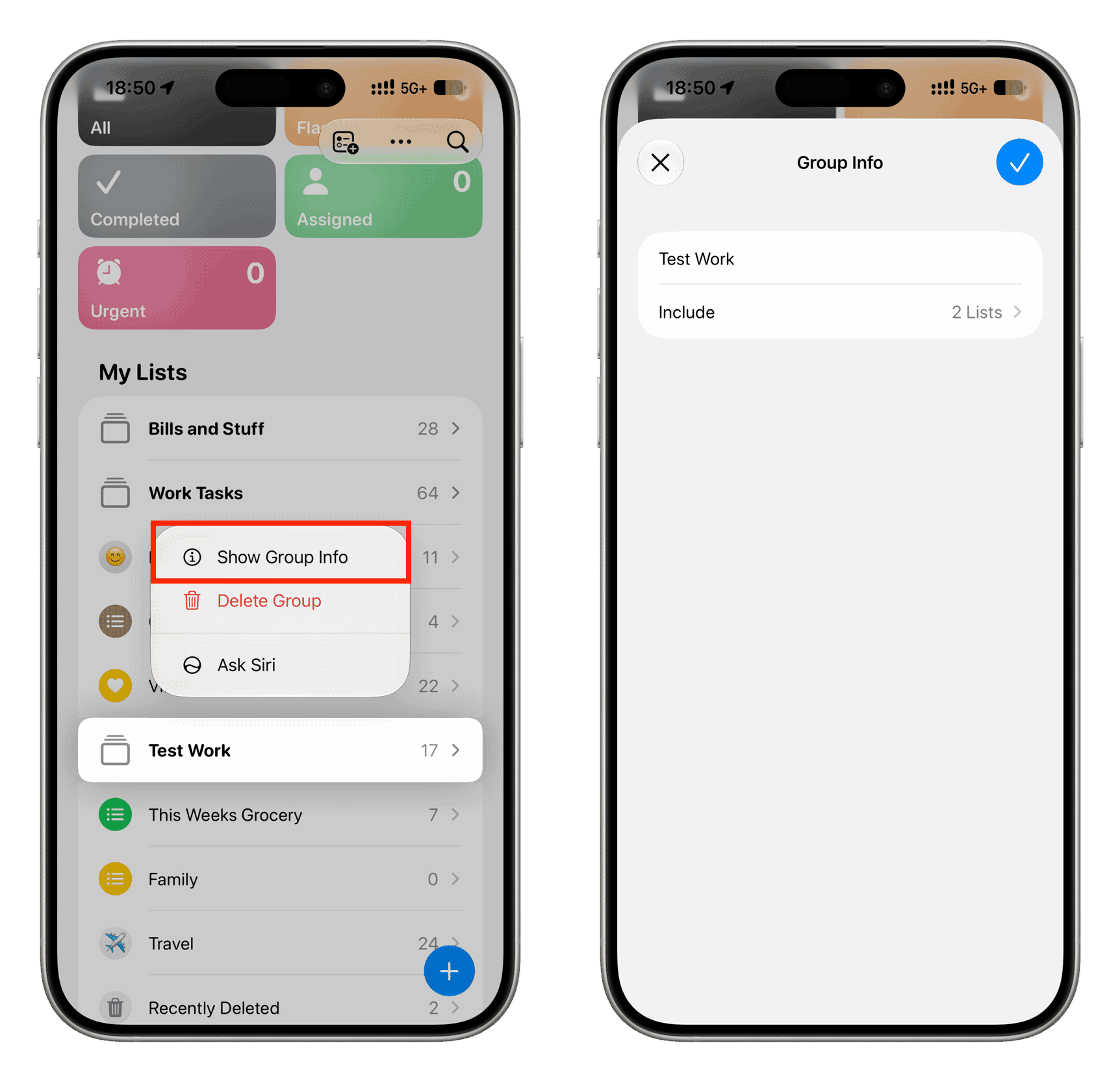
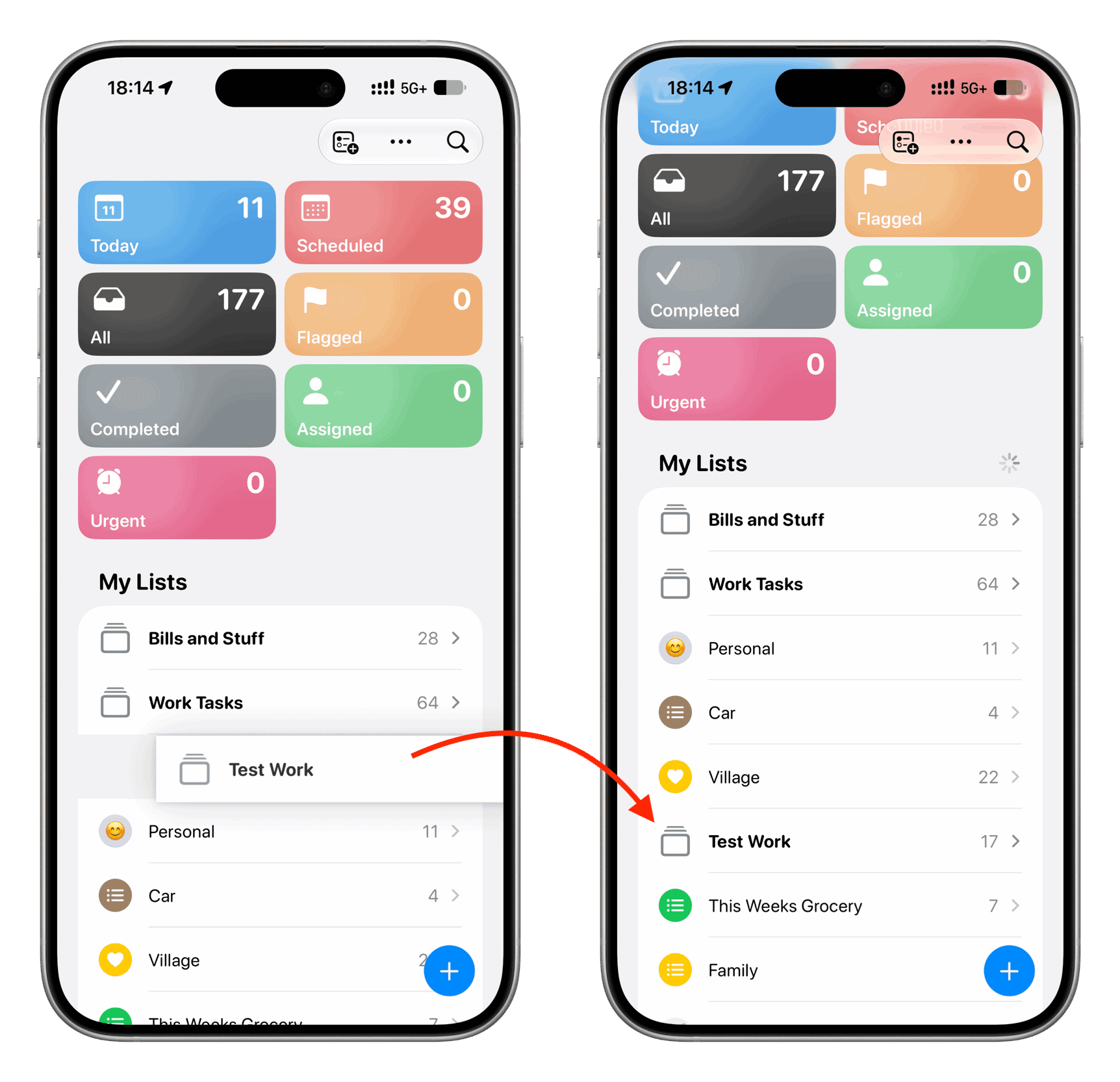
You can drag lists into or out of a group. On iPhone or iPad, you can also touch and hold a group and select Show Group Info to rename it. Tap Include to add lists with the green plus button or remove them with the red minus button, then go back and tap the checkmark to save. To move a group elsewhere in the list, touch and hold it, then drag it.
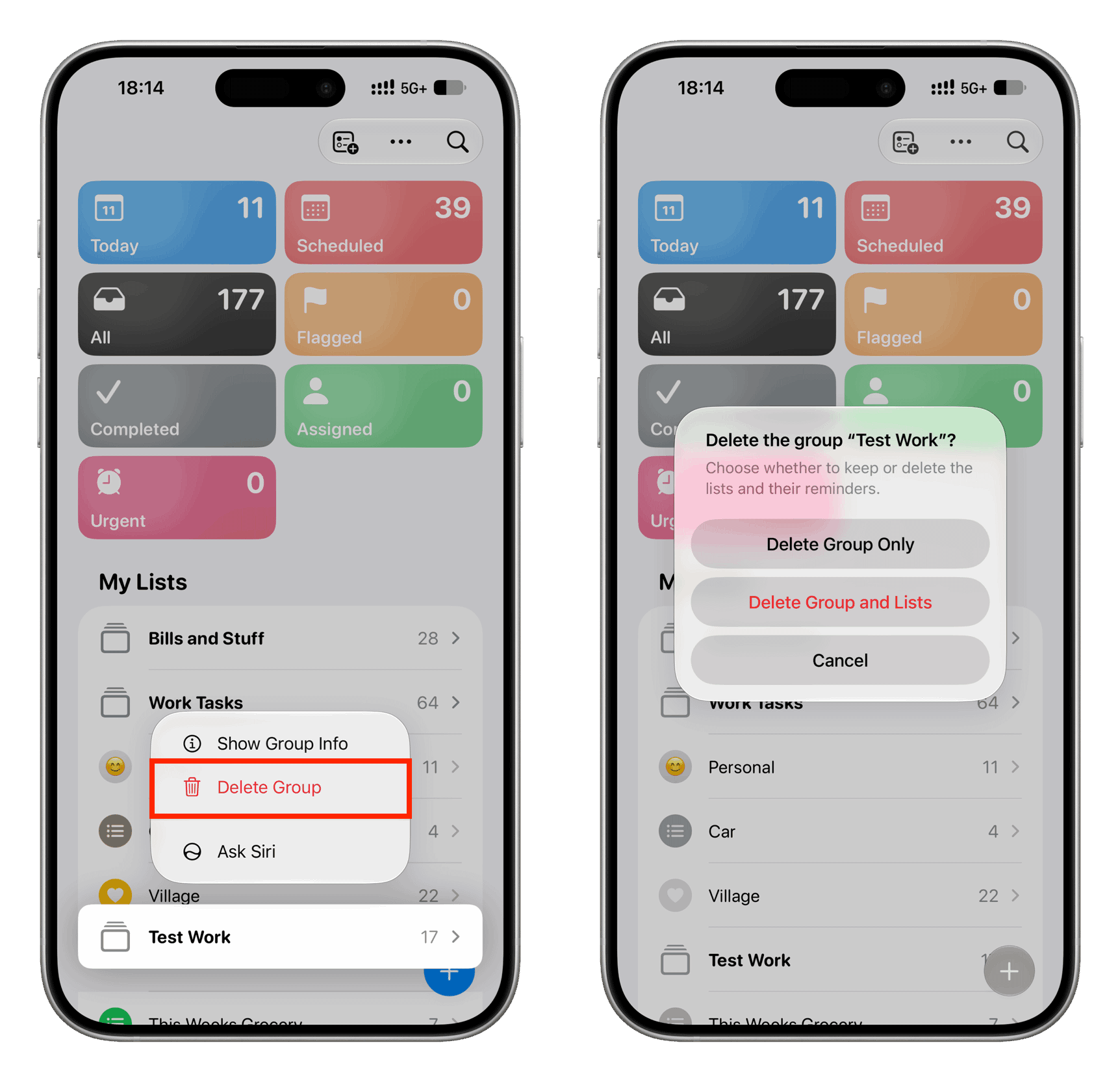
To delete a group, touch and hold it on iPhone or iPad, or right-click it on Mac, and choose Delete. If it contains lists with tasks, Reminders offers a choice between deleting only the group while keeping its lists and deleting the group along with its lists.