
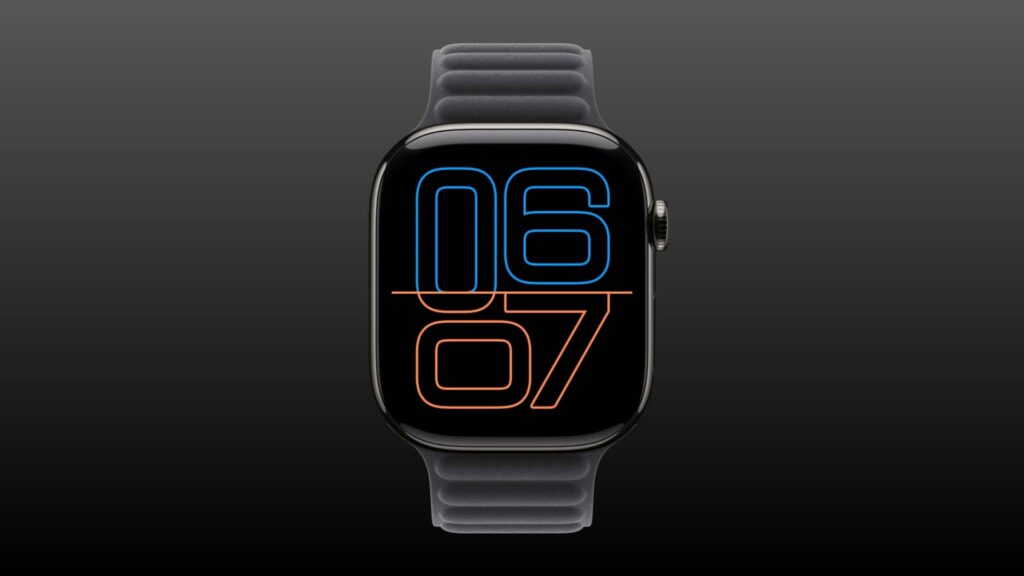
In a guide published November 9, 2026, iDownloadBlog explains how to switch off the Apple Watch’s Always On display or limit what it shows while your wrist is down. The guide says switching it off can extend battery life, but does not provide a measured savings figure.
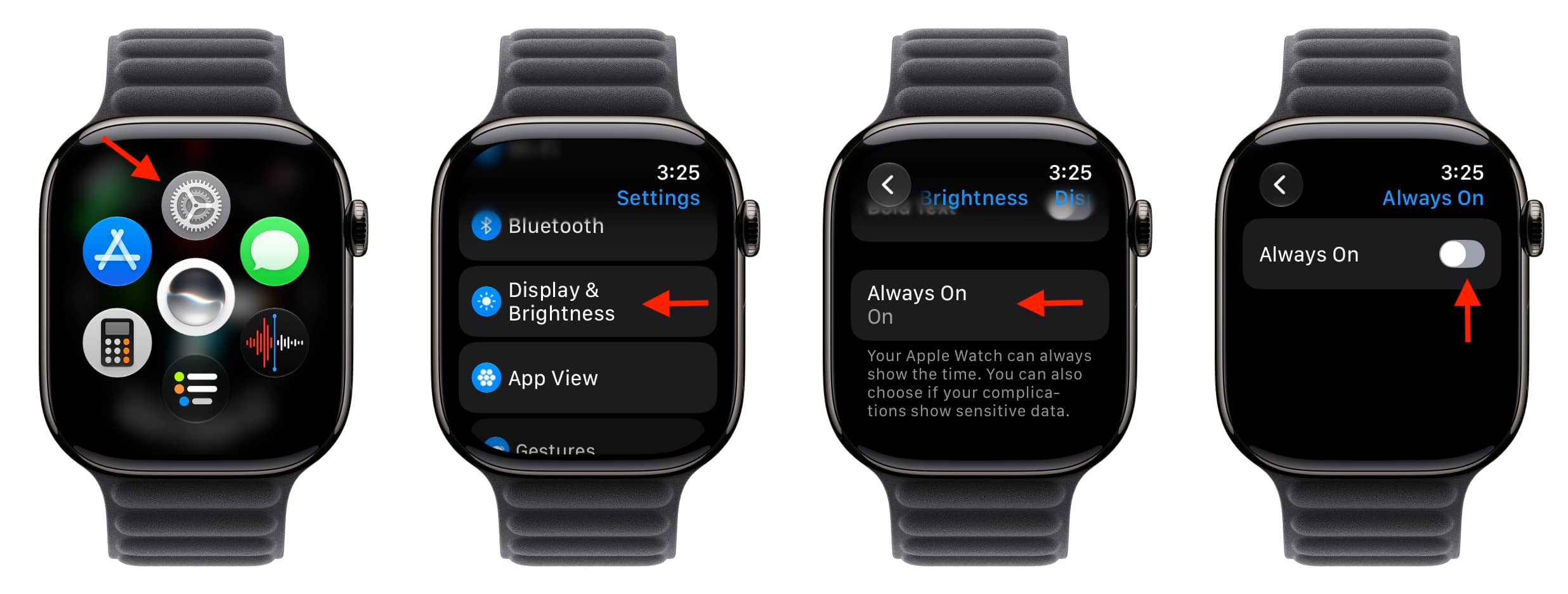
Turn it off
On your Apple Watch, open Settings → Display & Brightness → Always On, then turn off Always On. The screen will go black when you lower your wrist. For a temporary change, the guide suggests enabling Low Power Mode or Theater Mode instead.
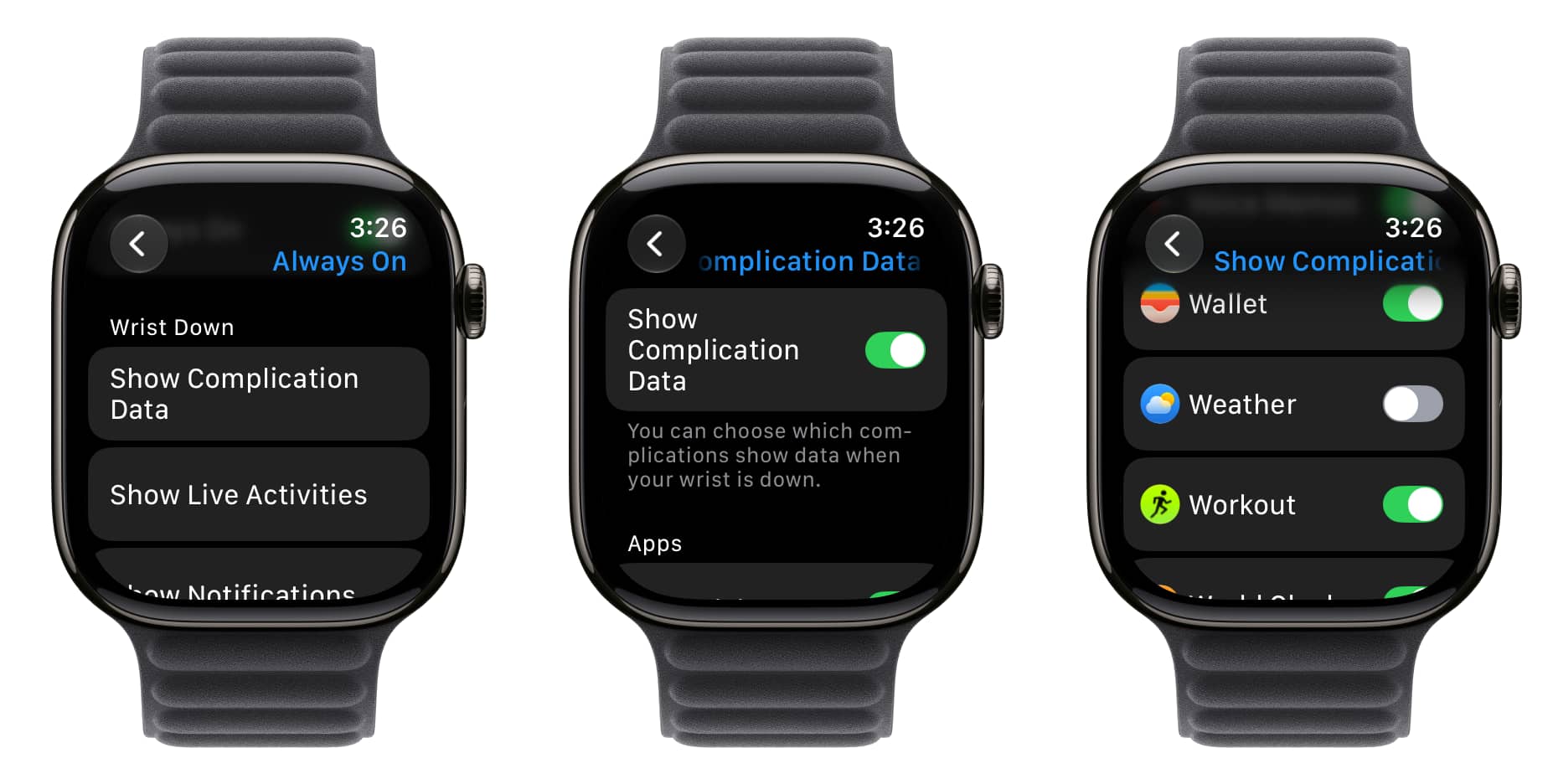
Keep it on, but show less
If you want to keep Always On enabled, return to Settings → Display & Brightness → Always On. Under Wrist Down, choose Show Complication Data, Live Activities, Notifications, or Apps. You can disable an entire category with its main switch or adjust individual apps.
For example, turning off Weather under complication data leaves its complication on the dimmed watch face but replaces the temperature with a dash until the display wakes. Turning off WhatsApp under notifications hides notification content while your wrist is down; it remains available when the watch display is fully awake. Limiting Live Activities can also keep an active voice recording or timer from appearing on the wrist-down display.
According to Apple’s update behavior described in the guide, the time and watch-face complications generally refresh once a minute in Always On mode. Live-data complications such as Compass and Noise are not active there, while Stopwatch and Timer complications round their displayed information to the next minute. Some elements, including a watch-face second hand or stopwatch on newer models such as Series 10 and Ultra 3, can update once a second.