
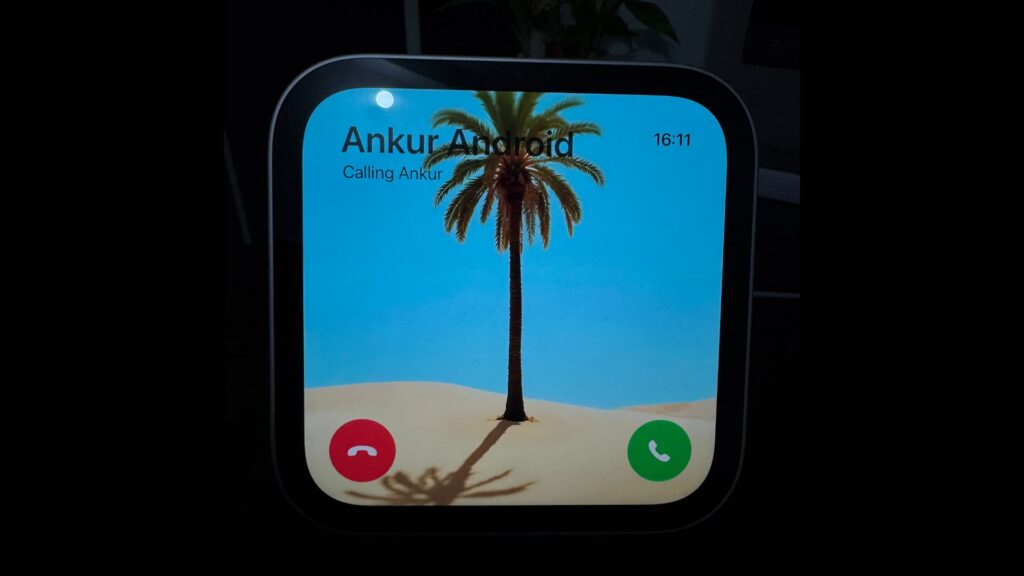
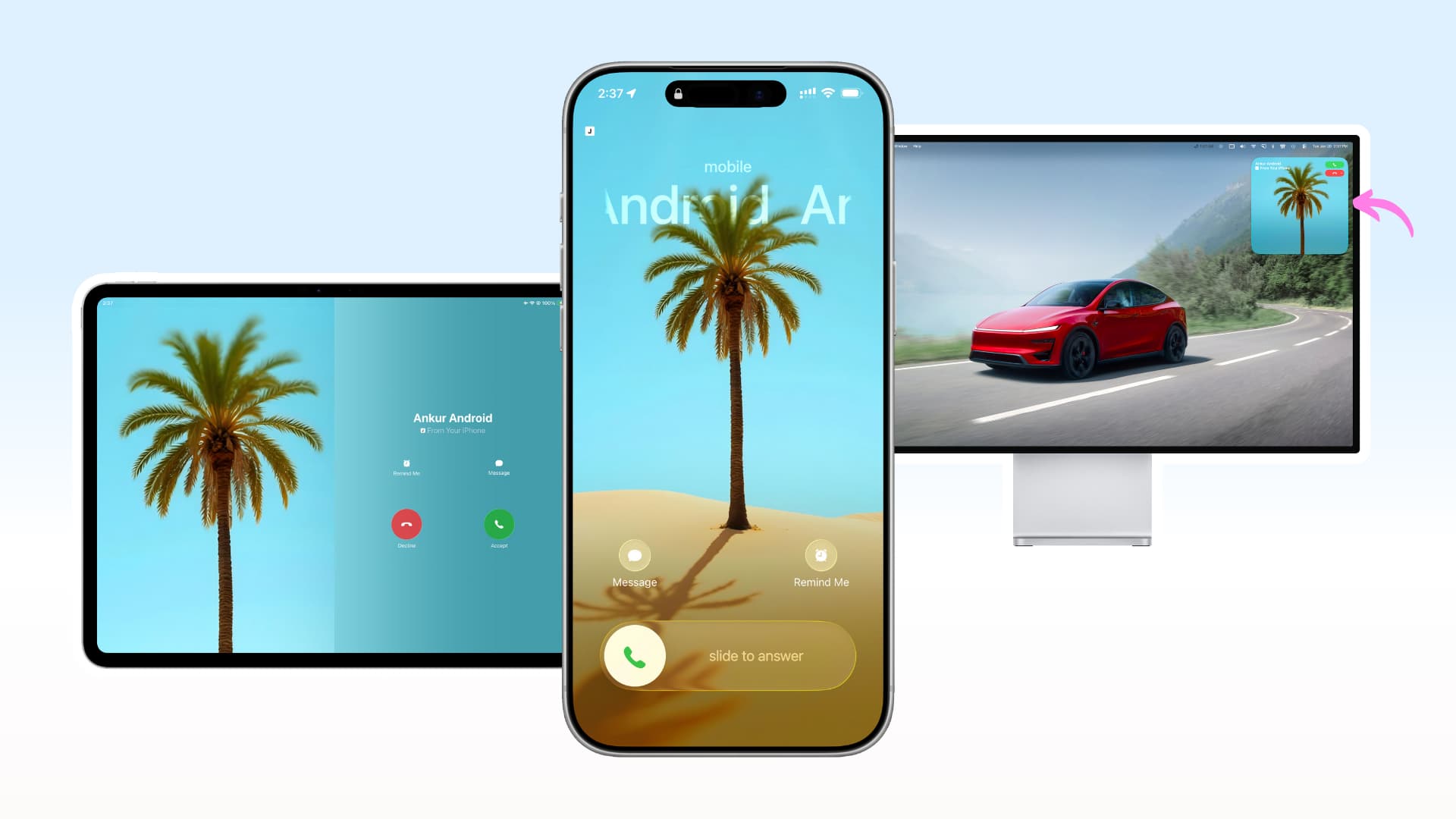
A guide published on November 21, 2026 (UTC+8) describes how to stop incoming iPhone calls from appearing on HomeView. Its main option is to turn off Incoming Calls on HomeView itself.
Turn off incoming calls
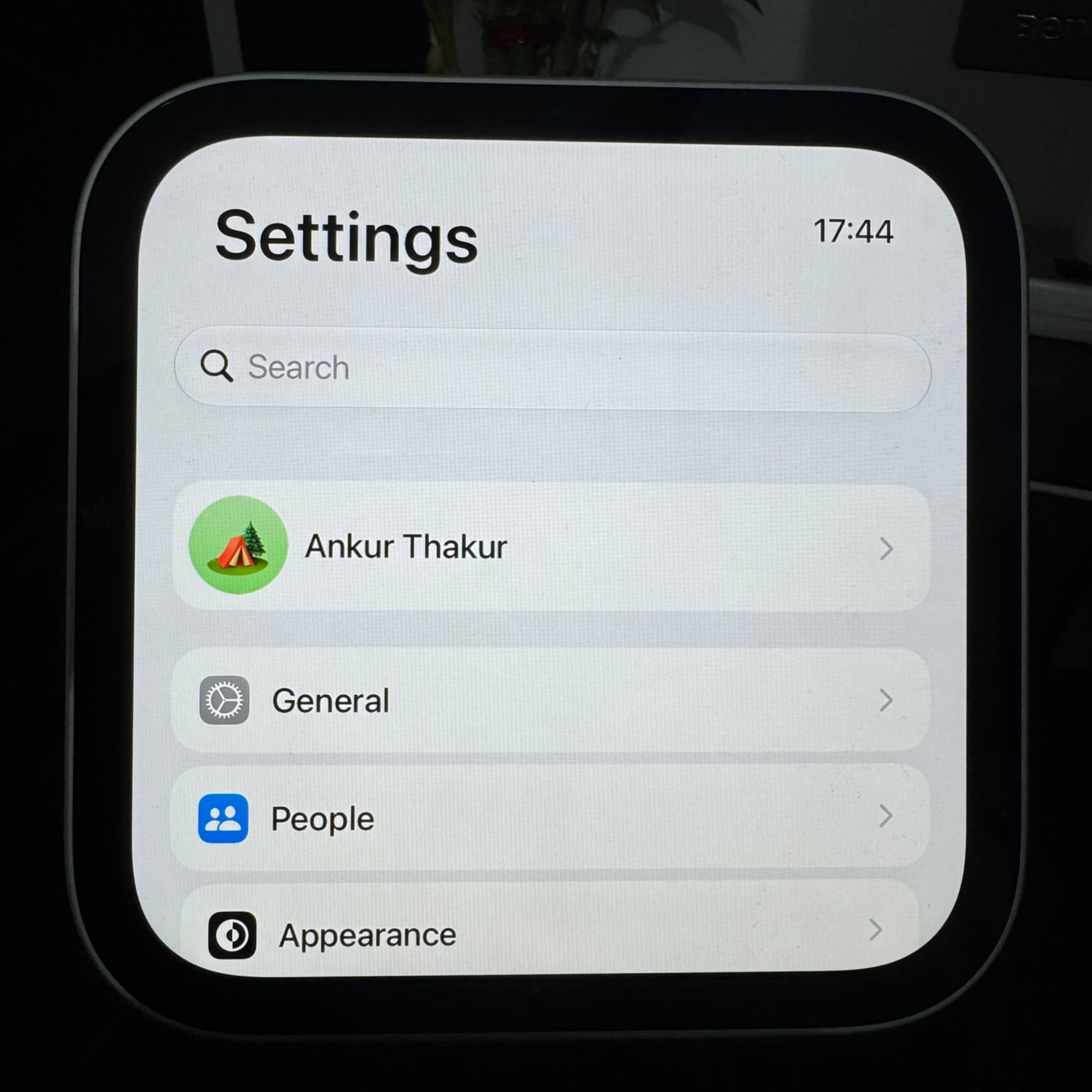
- Swipe up from the HomeView clock face to open the app drawer. Check that your profile icon appears in the top-right corner, then open Settings.
- Tap your name.
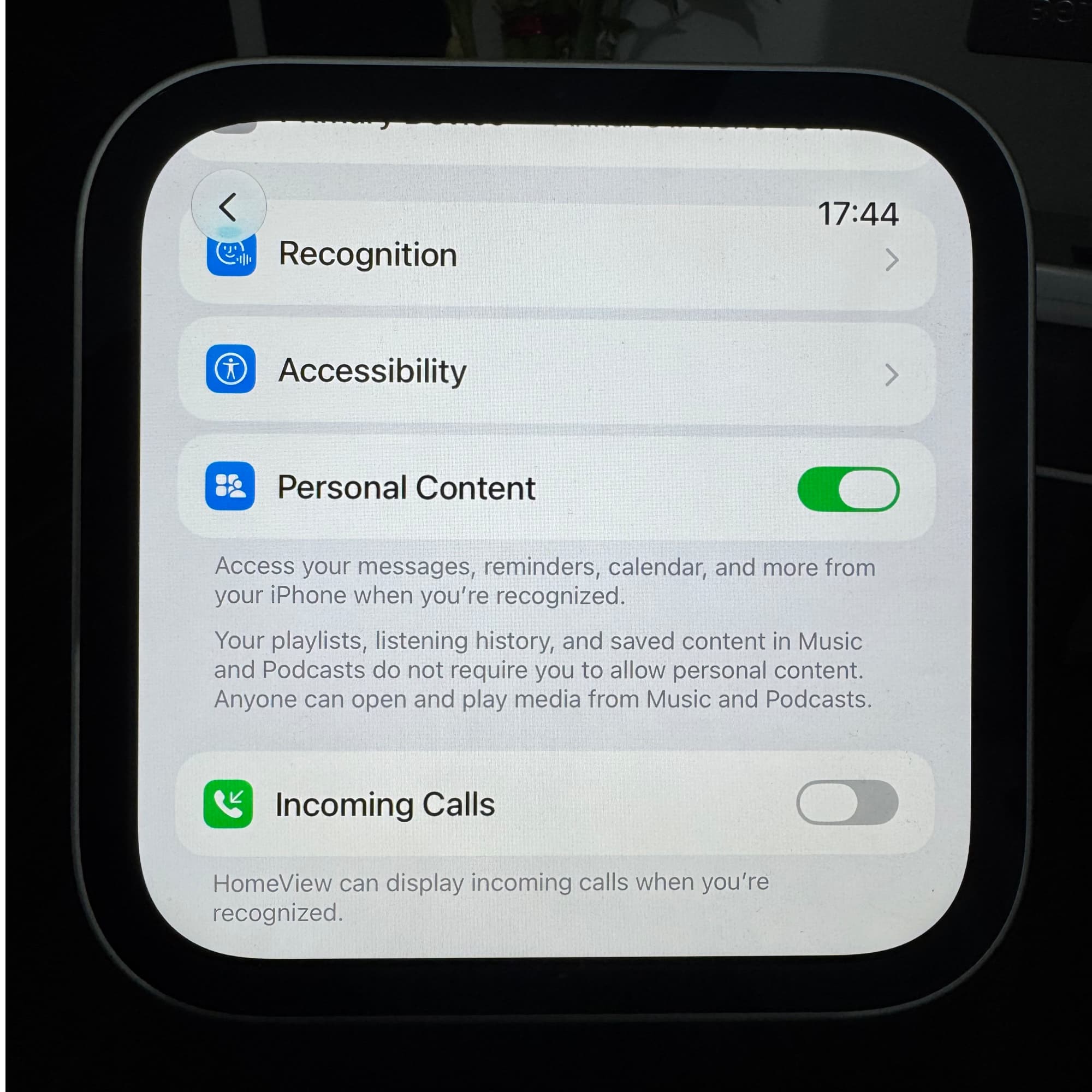
- Scroll down and turn off Incoming Calls.
According to the guide, this stops incoming calls from appearing on HomeView without changing whether they appear on your iPhone or on other devices where you have enabled calls.
The guide says a call would otherwise appear on HomeView only when your iPhone is nearby and on the same Wi-Fi network, Personal Content is enabled, your profile is selected, and HomeView can see your face. Those conditions may prevent a call from appearing while you are away, but someone behind you could still see the screen when you are nearby.
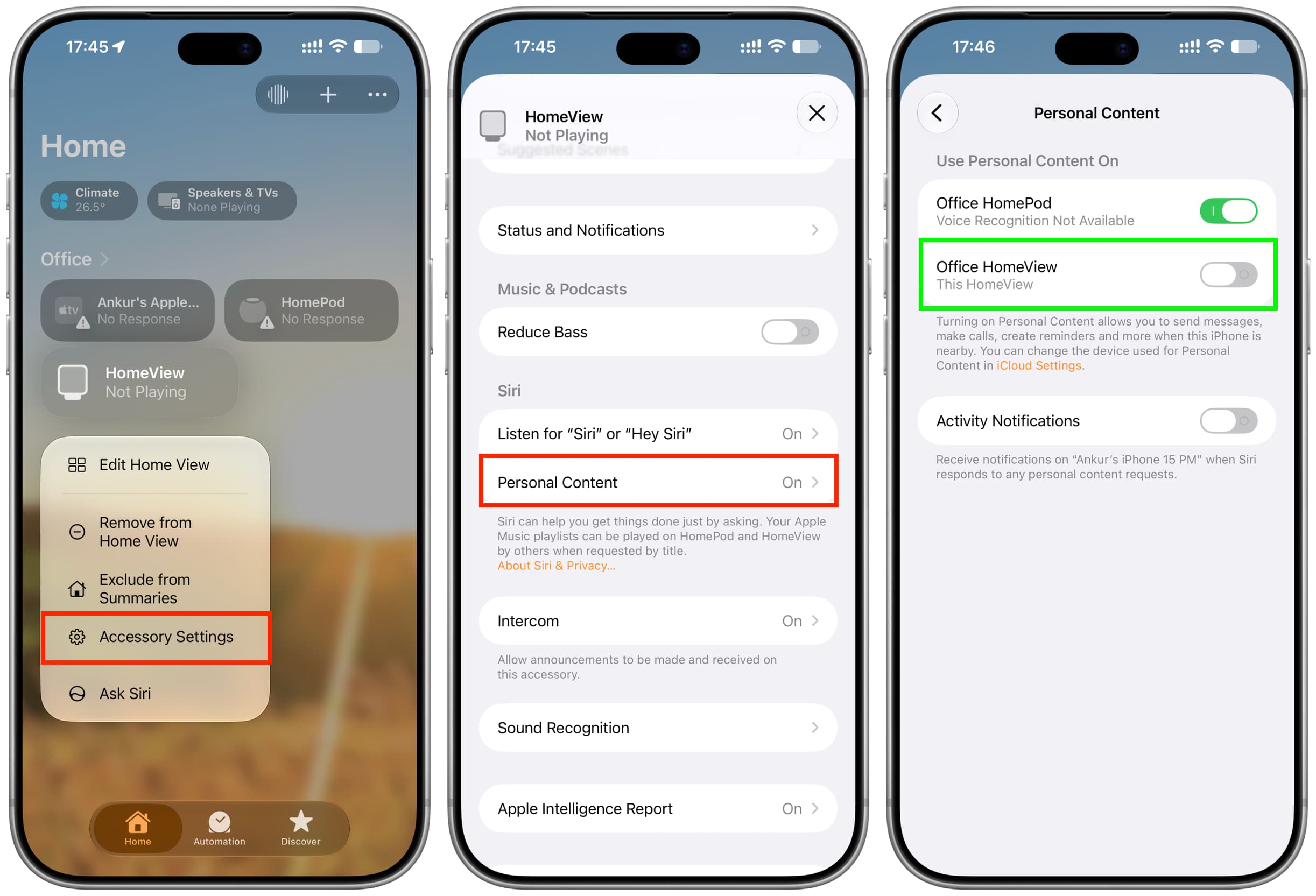
If you cannot access HomeView
The guide offers two alternatives. Turning off Wi-Fi on your iPhone prevents it from meeting the same-network condition. To disable Personal Content instead, open the Home app on your iPhone, touch and hold the HomeView tile, select Accessory Settings, tap Personal Content, and turn off the switch for HomeView. This is a broader change: the guide says Personal Content also allows items such as messages and calendar events to appear in HomeView apps.
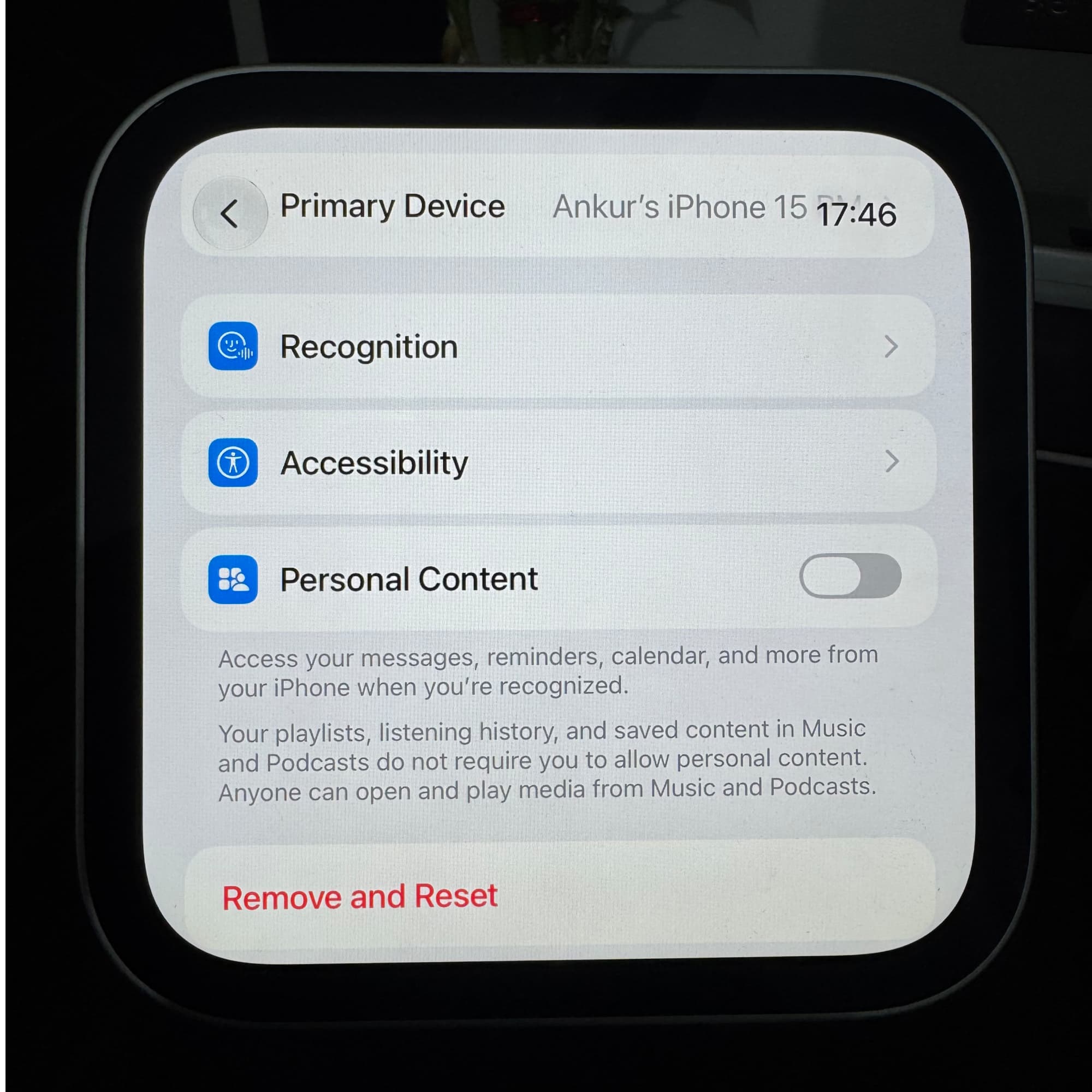
According to the guide, the Home app change can work remotely if both devices have internet access, even when they are not on the same Wi-Fi network. It also says the HomeView call setting cannot be managed through the iPhone’s Settings → Apps → Phone → Calls on Other Devices menu.