
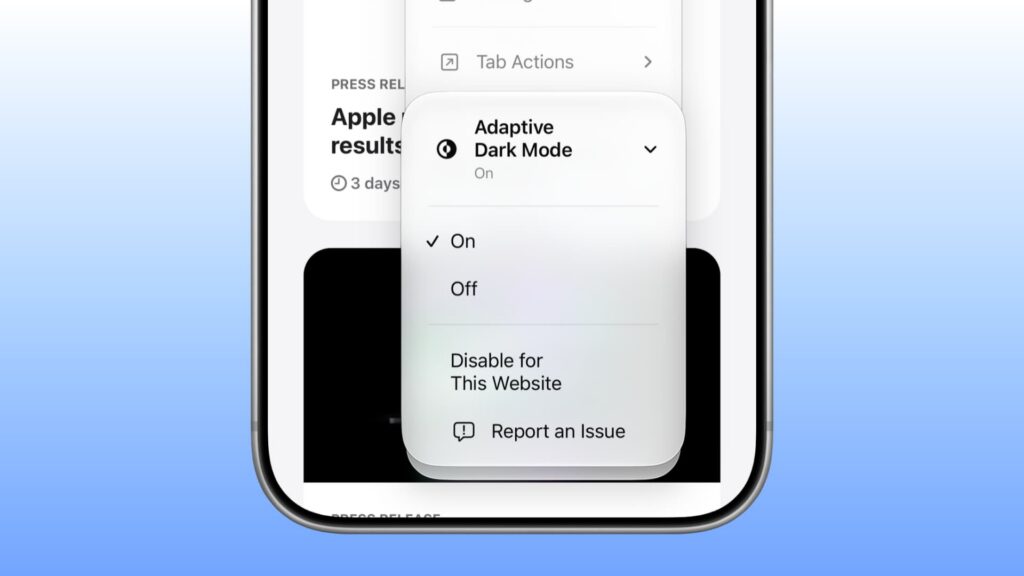
Safari’s Adaptive Dark Mode can darken webpages that do not provide their own dark appearance. It is a built-in option, so it does not require an extension.
As reported on November 7, 2026 (UTC+8), the feature was available in beta versions of iOS 27.3, iPadOS 27.3, and macOS 27.3 Golden Gate. A general release was expected in the following weeks; it had not yet been reported as released.
Turn it on for a website
- Update to iOS 27.3, iPadOS 27.3, or macOS 27.3 Golden Gate or later.
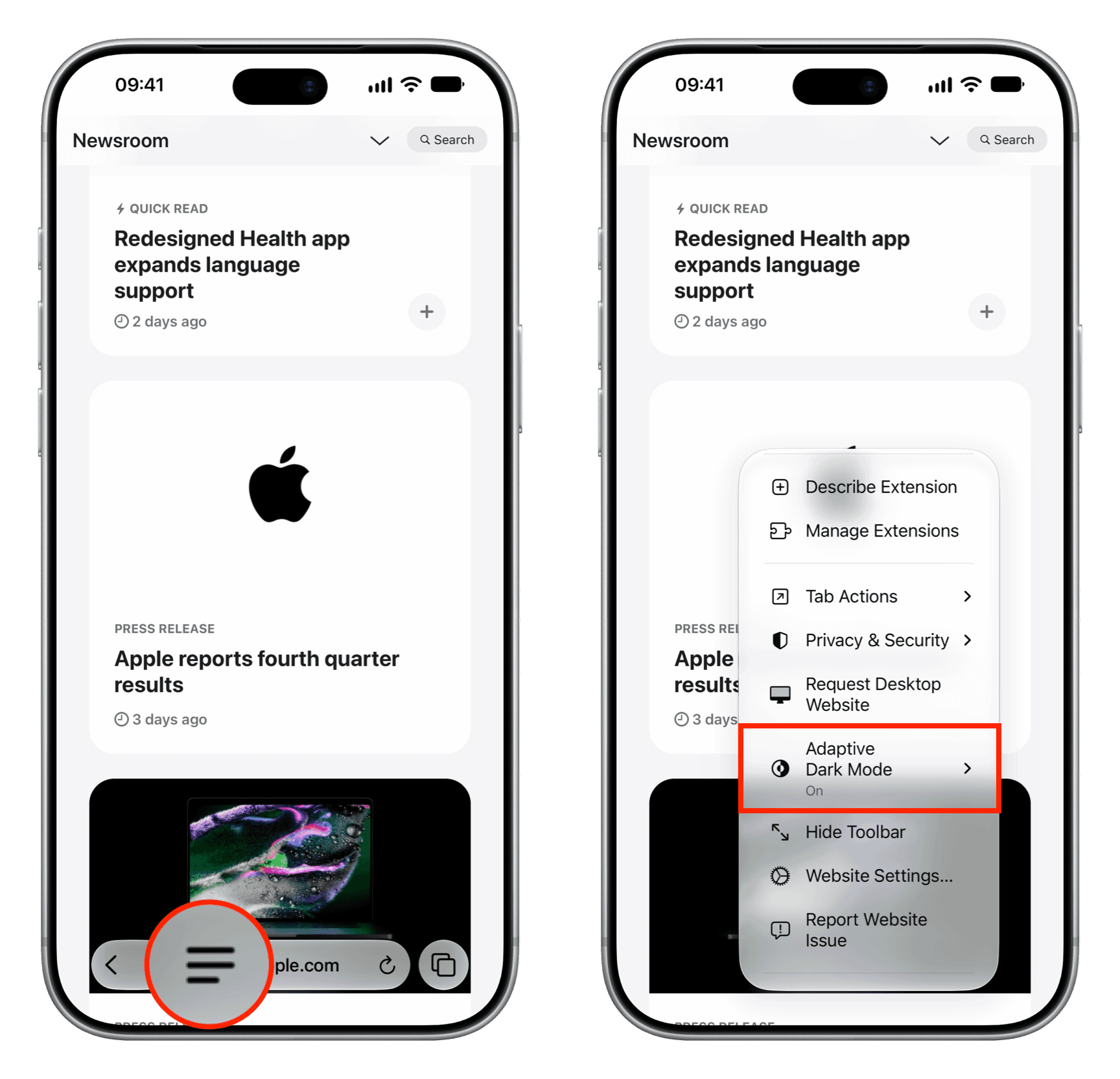
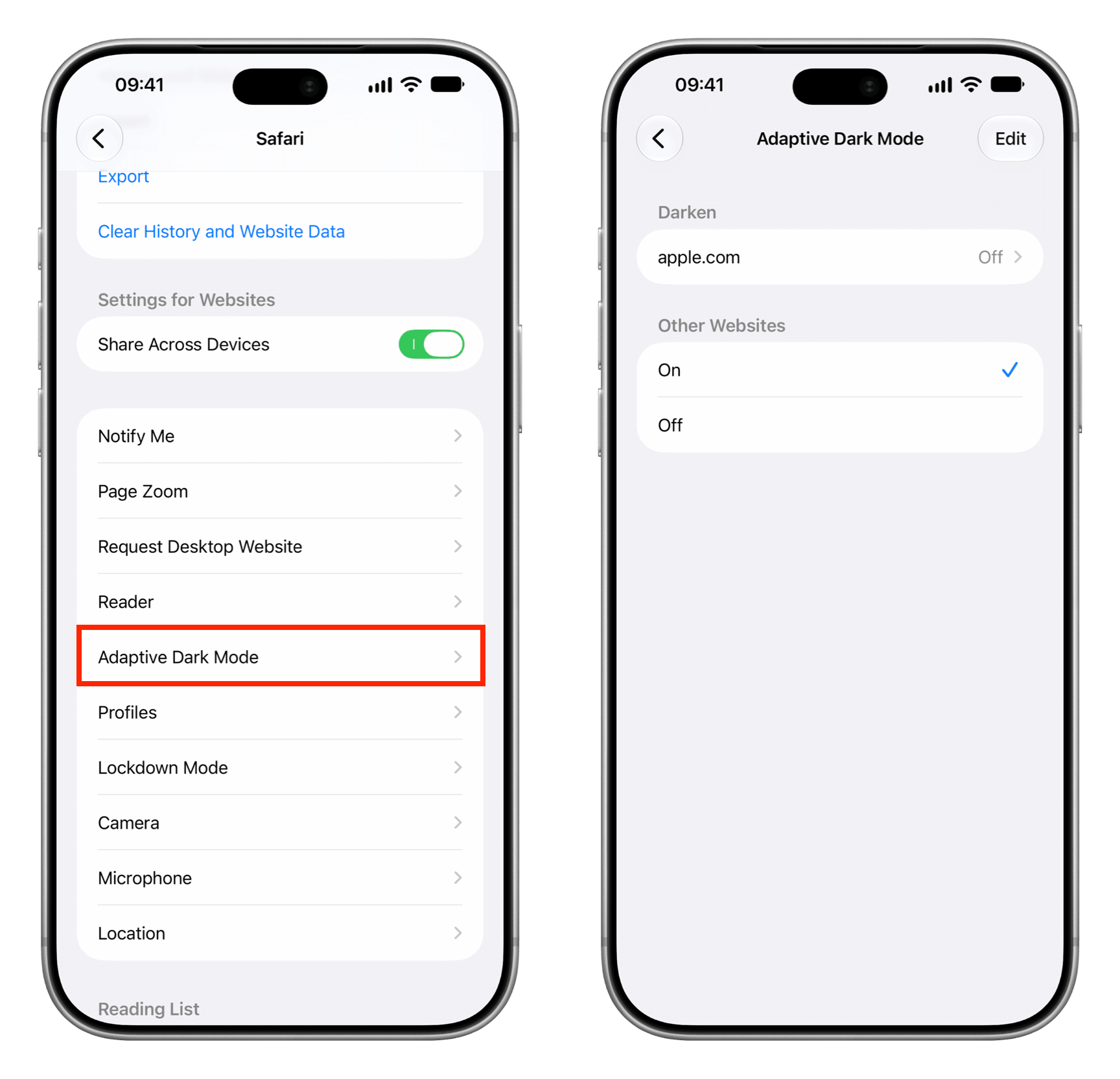
- Open the website in Safari. On iPhone, tap the three-line menu icon in the address bar and choose Adaptive Dark Mode.
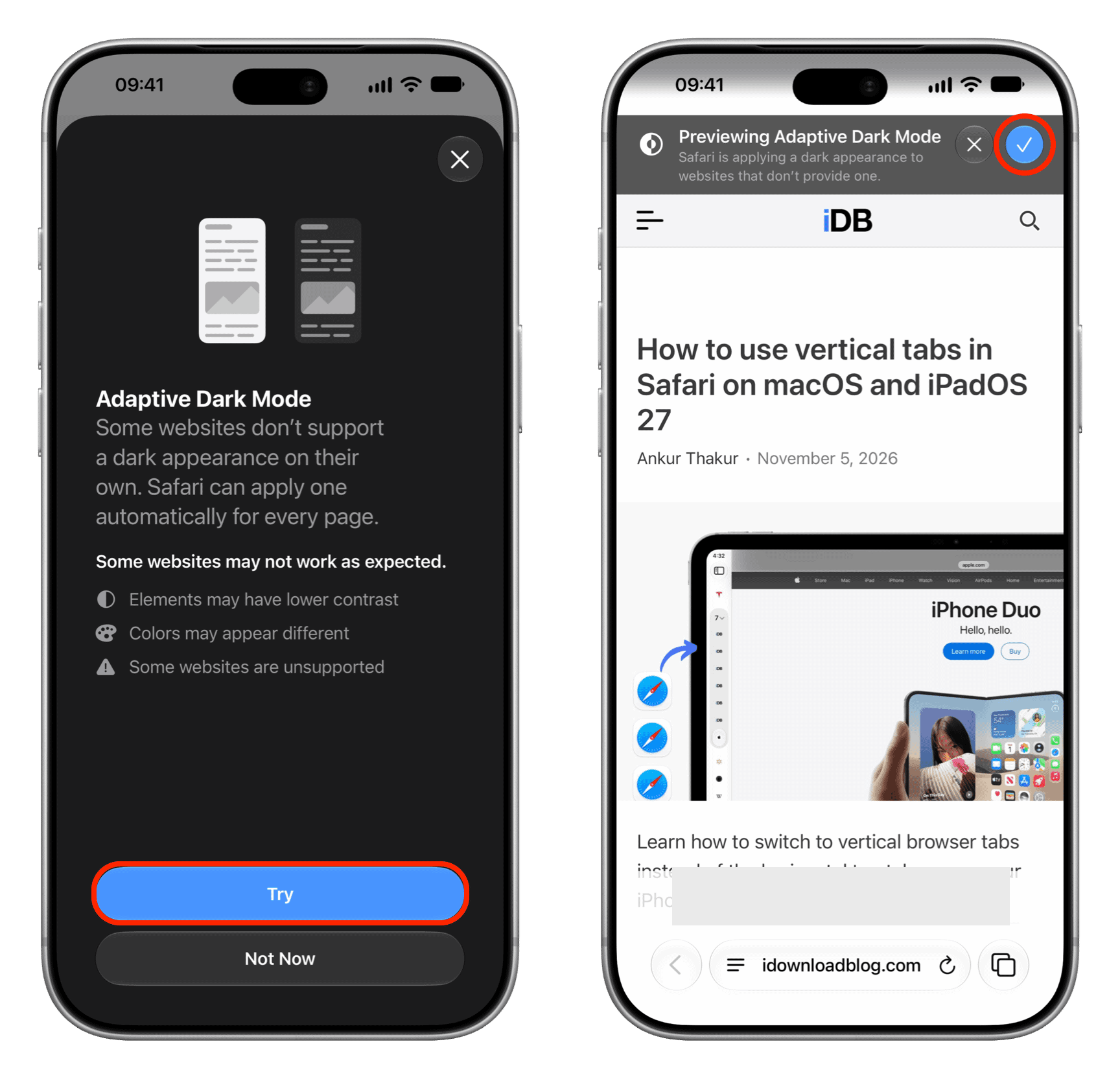
- The first time you use it, tap Try on the explanation screen, then tap the blue checkmark on the preview banner.
- To change the setting later, return to the menu and choose Adaptive Dark Mode → On or Off.
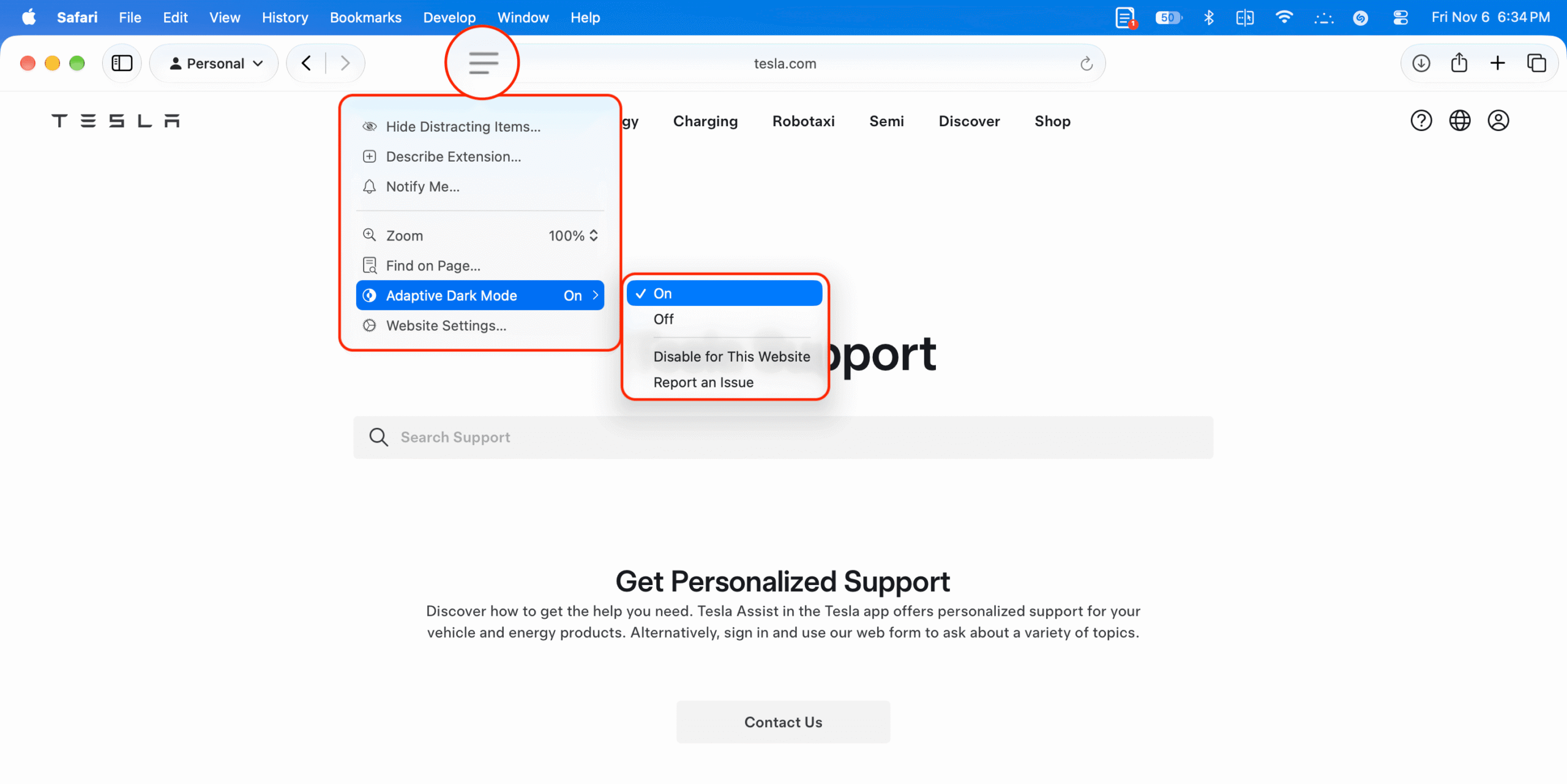
You can also manage the feature in Safari settings. On Mac, open Safari Settings → Websites → Adaptive Dark Mode to manage it for currently open sites or all sites.
According to Apple and MacRumors, Safari adjusts each page rather than applying the same changes everywhere. Depending on the site, it may darken backgrounds, adjust text contrast, recolor graphics, or rebalance shadows.
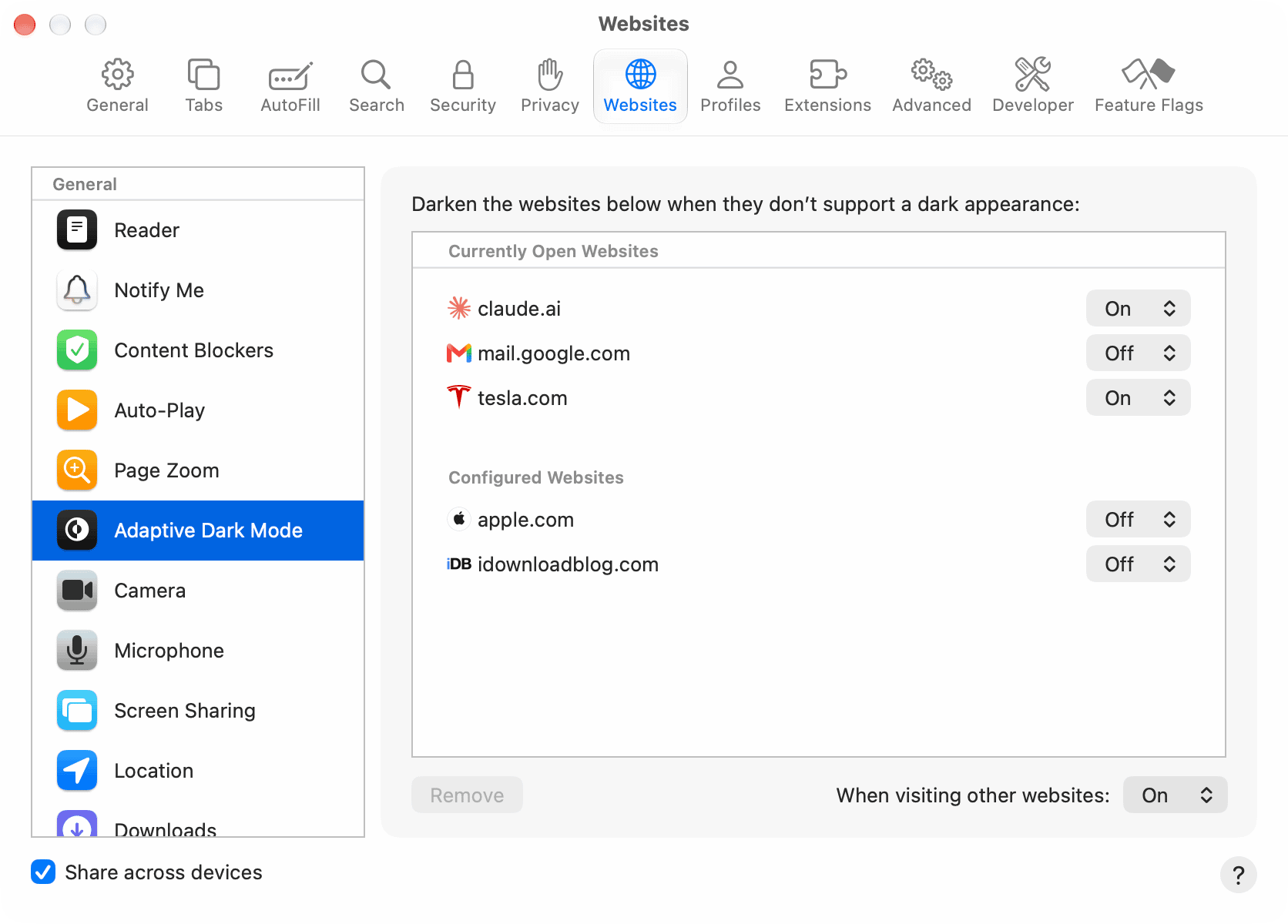
A setting marked “On” does not guarantee a visible change. The original reporter found the iOS 27.3 beta inconsistent: the feature did not work on iDownloadBlog’s site, worked once on tesla.com but not on later attempts, and appeared not to work on several other pages. Restarting the device did not resolve those issues in the reporter’s testing.