
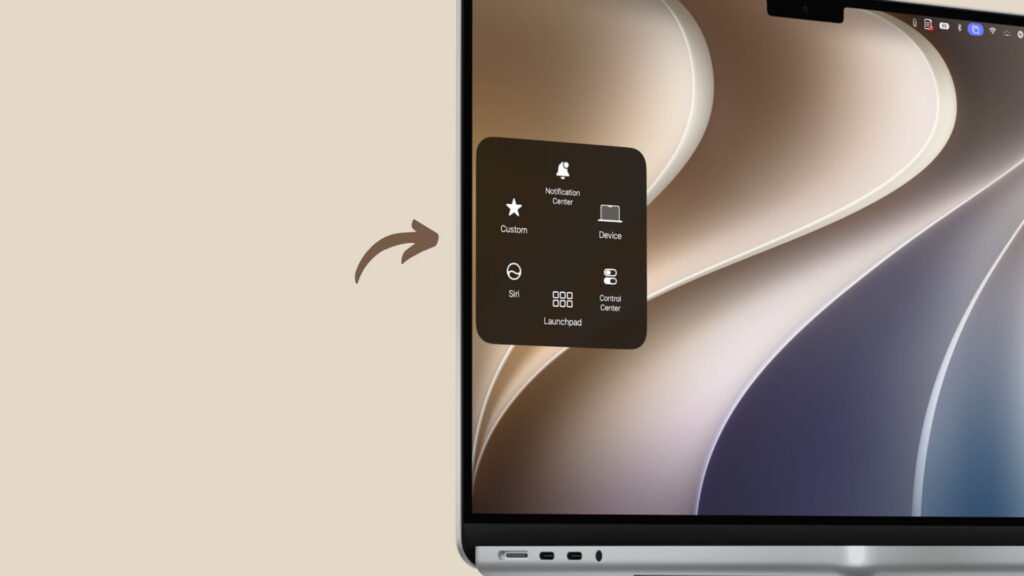
In a guide published November 14, 2026, iDownloadBlog reported that AssistiveTouch is available on Macs running macOS 27 Golden Gate. Its floating button provides quick actions using a touchscreen, trackpad or mouse. The guide says it also appears on both the Mac and iPad screens when using Sidecar.
Turn it on
- Update your Mac to the latest version of macOS 27 Golden Gate.
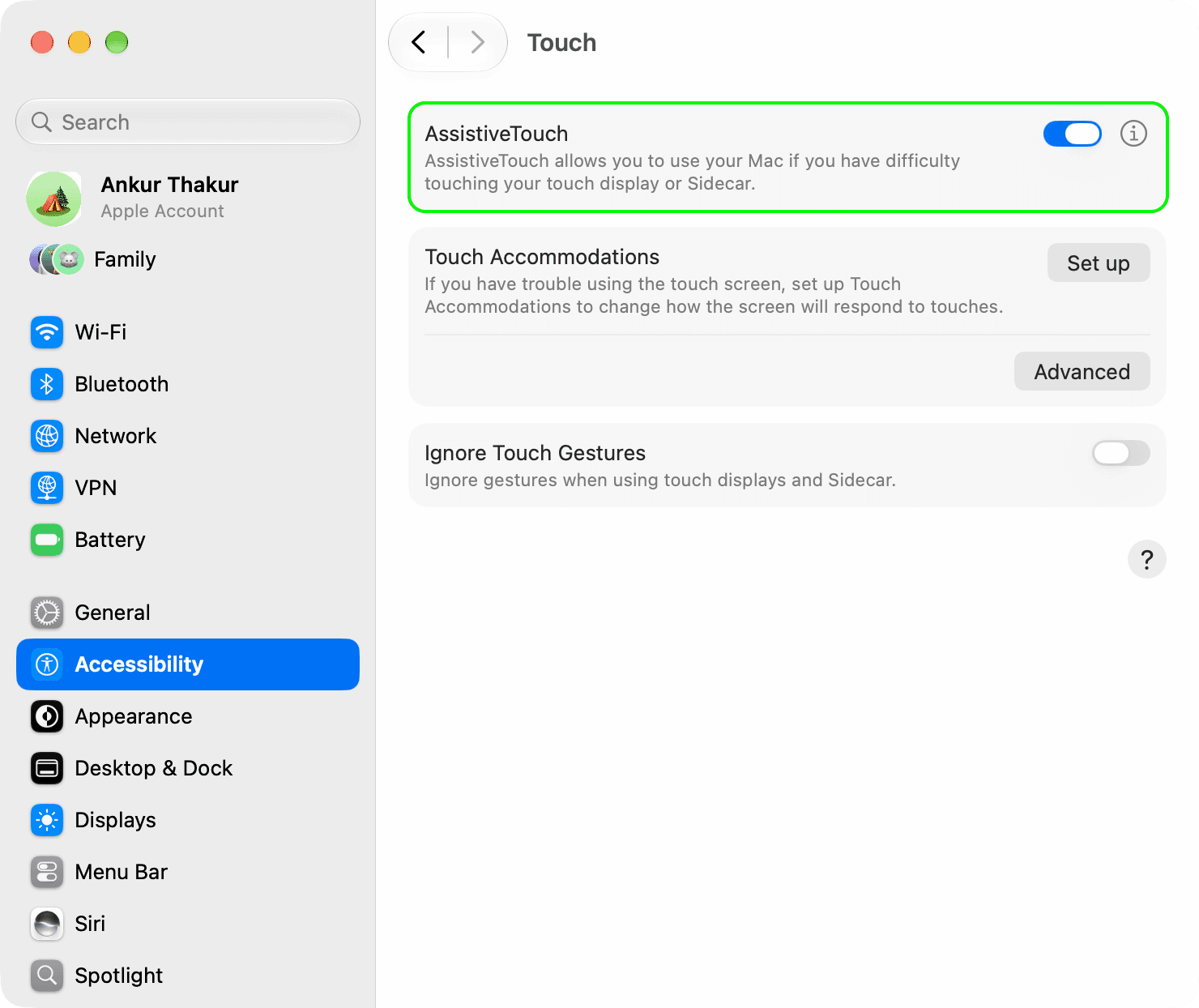
- Open System Settings → Accessibility → Touch. The guide places Touch under Physical and Motor.
- Turn on AssistiveTouch.
Click the floating button to open its menu, or drag it to a preferred screen edge. According to the guide, a touchscreen is not required: the button also works with a trackpad or mouse.
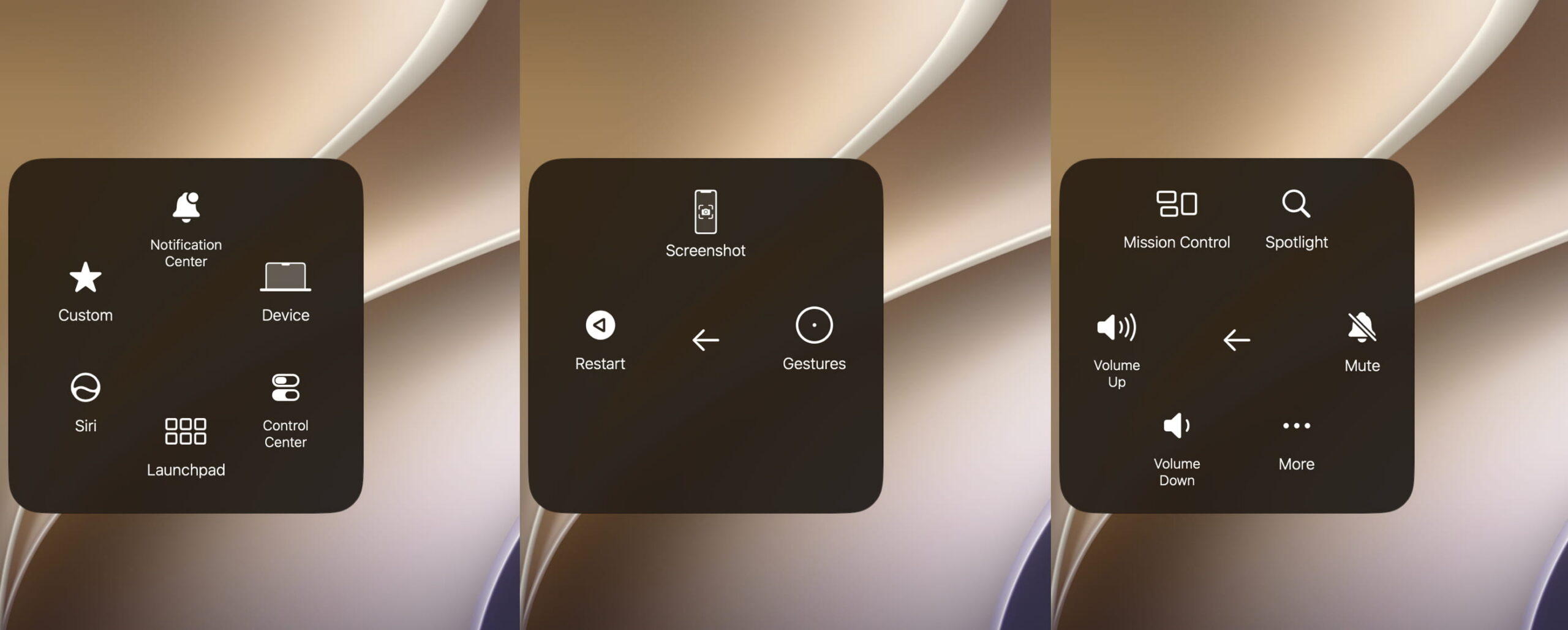
Adjust the controls
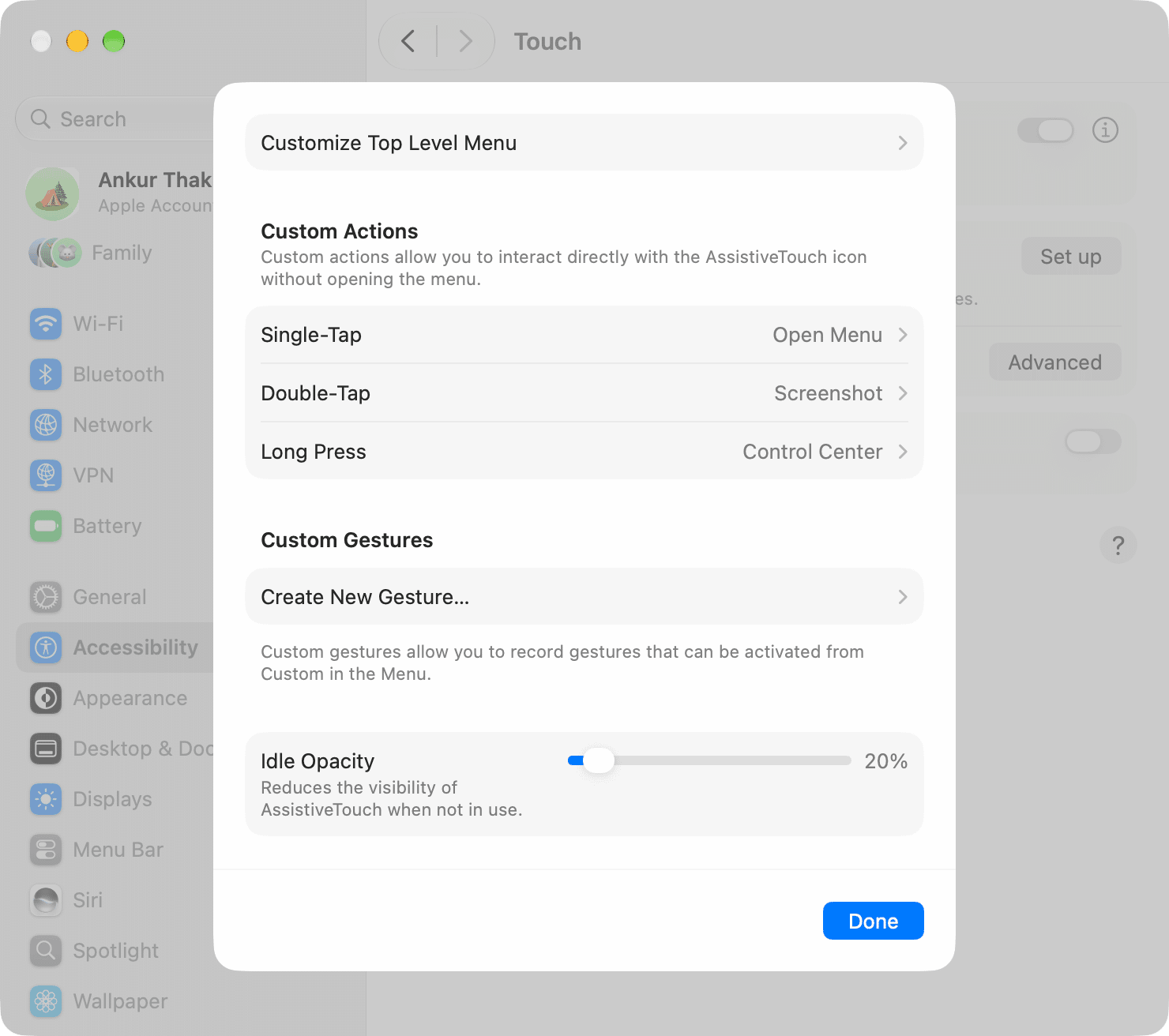
Go to System Settings → Accessibility → Touch and click the ⓘ next to AssistiveTouch. There you can assign single-click, double-click and long-press actions; choose up to eight items for the first menu page; create custom gestures; and change the button’s idle opacity. The guide lists default double-click and long-press durations of 0.30 seconds and 1 second, respectively. Click Done to save changes.
The guide notes that AssistiveTouch could not be added to the Mac’s Control Center for quick access at the time of reporting.